Assets Gadgets 5.26: Asset Manager, saved filters, new My Assets
Search Jira Assets, save AQL filters and reuse them in every dashboard gadget, export to CSV — plus a new My Assets for employees and portal customers.
Building a Jira Assets dashboard used to mean writing the same AQL in every gadget and keeping it in sync by hand. With Assets Gadgets 5.26 you search Jira Assets on one page, save the search as a filter, share it with your team and point any gadget at it. My Assets got a full redesign for employees and JSM portal customers, and your charts now use the colors you pick.
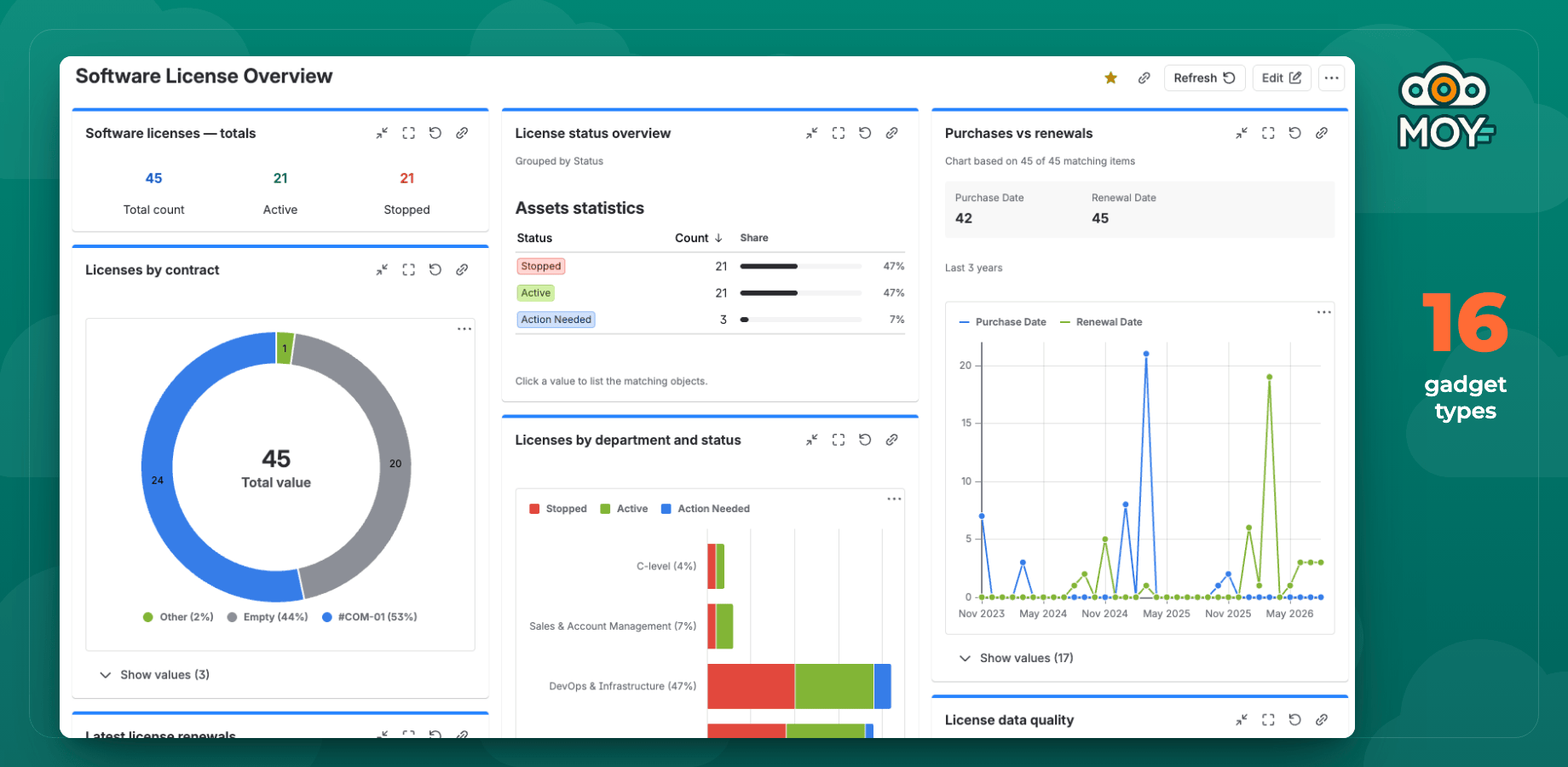
One dashboard, many gadget types, all driven by AQL
Asset Manager: search, saved filters and CSV export
Assets Gadgets now adds an Asset Manager page to Jira with three tabs: My Assets, Search and Filters.
- Search works in two modes. Basic uses filter chips for schema, object type, status, people and dates, plus More filters for any attribute. AQL highlights the query and suggests attributes, operators and values as you type.
- The results table lets you choose columns, sort by any sortable column and show 25, 50 or 100 rows per page. Every search has its own link, so you can share it.
- Saved filters: Save, Save as, star a filter, see Edited and Revert unsaved changes. The Filters tab lists Starred, My filters, Shared with me and All. Share a filter with users, groups or the whole organization, and use Copy link, Change owner, Copy and Delete.
- CSV export: the current page, selected rows (up to 1,000) or all results (up to 10,000), prepared in the background with progress and Cancel.
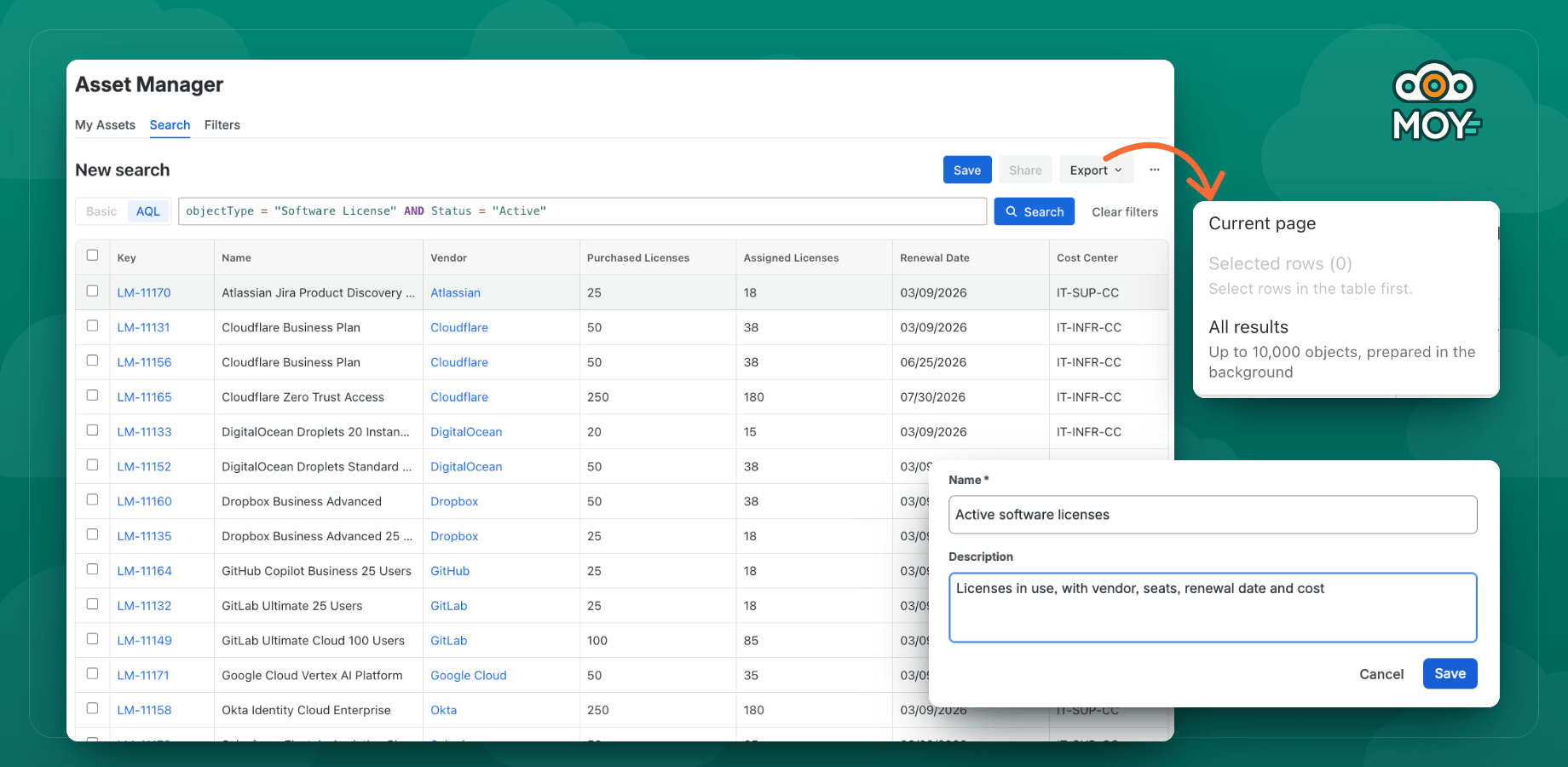
Search, save, share and export Jira Assets objects
One saved filter for every gadget
Every gadget except Date vs date chart and My Assets can now use Use saved filter as its data source, and each count in AQL counter can have its own filter. A gadget always runs the filter's current AQL, so you change a query once and every dashboard follows. Viewers see data only when the filter is shared with them.
A new My Assets for employees and portal customers
My Assets is the asset portal for customers and employees: each person sees the assets assigned to them, in Jira and in the Jira Service Management portal.
- A new Overview with a card per table, Recently updated, counters, Assets by category, a status bar and Needs attention for dates that are coming up.
- Table tabs with filter chips and sorting that are remembered per table, Table or Cards view, and an Insights panel.
- An asset details panel with three widths and Open full view.
- Create request right from an asset, with up to 5 request types per table.
- The portal now looks the same as the page in Jira.
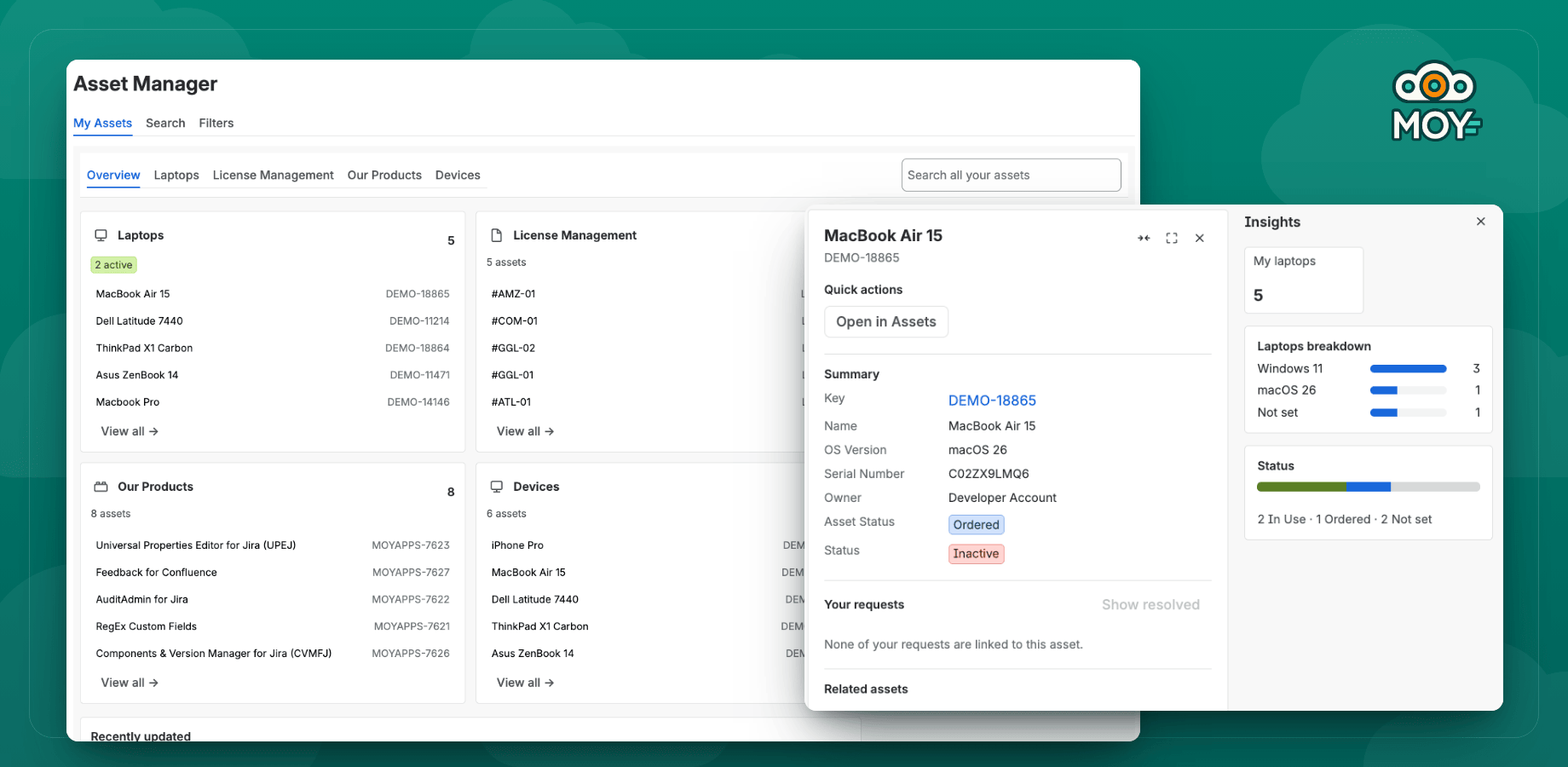
Employees and customers see only their own assets
Admins set it all up in a redesigned editor: a list of portal tabs on the left and, for each table, Data, Insights, Details panel, Requests and Access. Every problem is listed before you save.
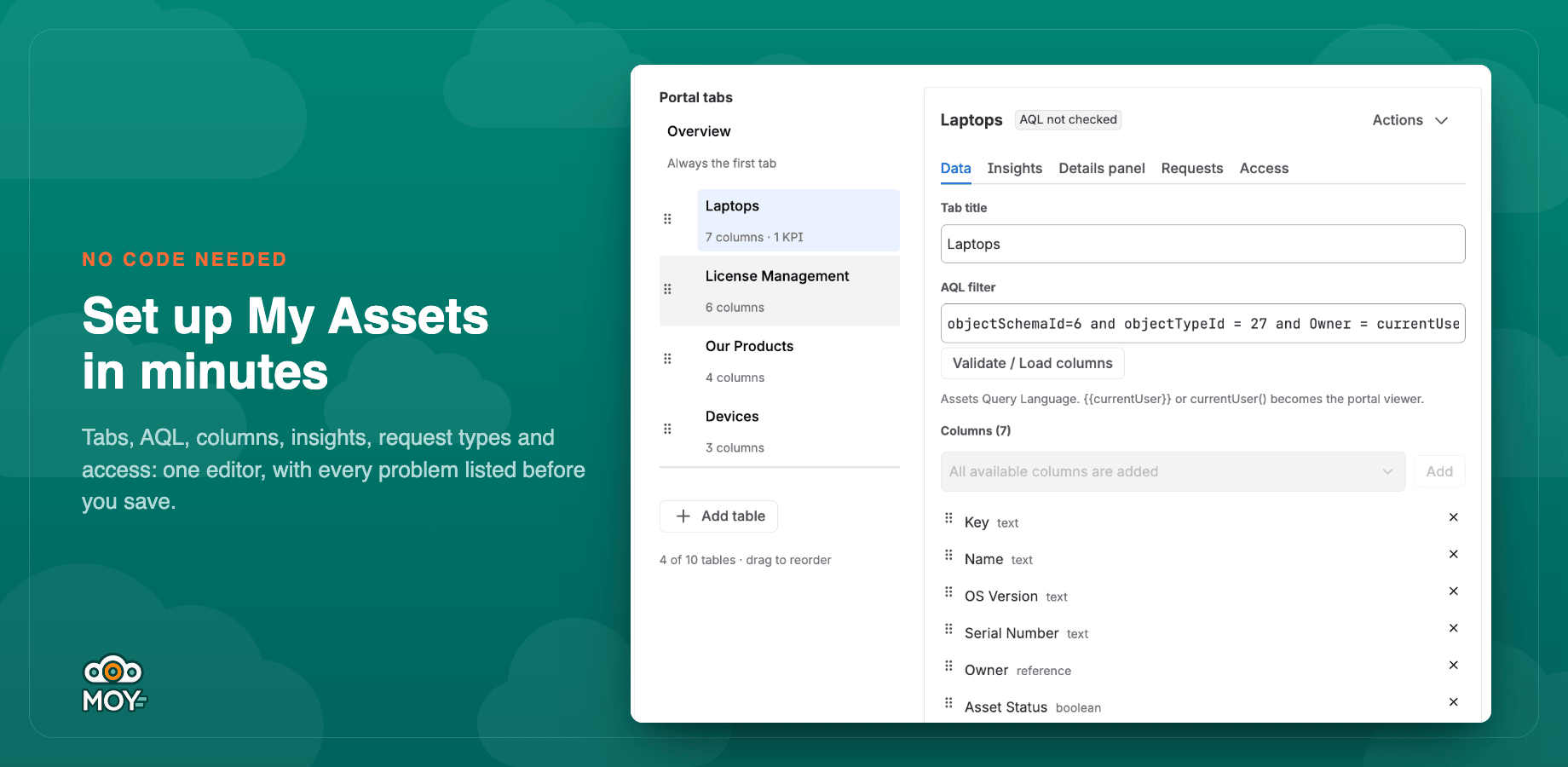
No code: tabs, AQL, columns, insights and access in one editor
Your own chart colors
Pie, Donut, Bar, Horizontal bar, Stacked and Horizontal stacked charts have a new Colors section in their settings. Click a value and pick one of 8 colors, or choose Automatic to reset it. Your colors are the same for every viewer and in every language, and they stay when you reload the page or copy the dashboard. Assets statuses follow their status category, and only Empty is gray.
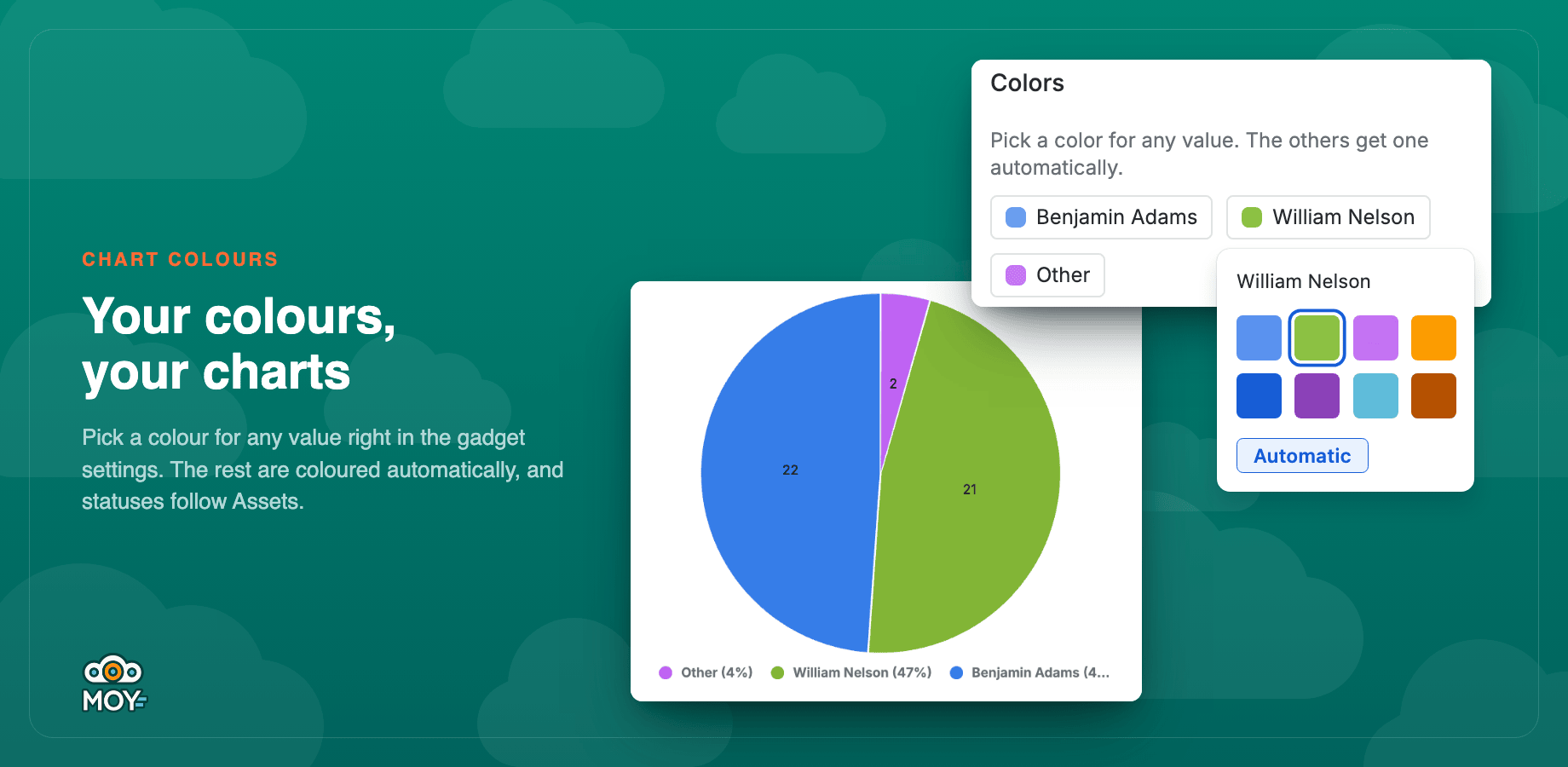
Pick a color for any value; the rest stay automatic
Smaller improvements
- Full chart legends when Jira's own legend would cut a name off.
- Date vs date chart shows your attribute names and a readable time axis.
- Copied dashboards keep the configuration of every gadget.
- Large results load faster.
- Short gadget names and a picture for every gadget in Add a gadget.
- A new Saved filters tab in the app settings for filter admin groups.
The full list of changes, including fixes, is on the Version history tab of the Marketplace listing.
FAQ
How do I reuse one AQL query on several dashboards?
In Asset Manager → Search, build the search and select Save. Then open any gadget's settings, choose Use saved filter and pick the filter. When you change the filter, every gadget that uses it shows the new result after a refresh.
Who can see a saved filter?
The owner, Jira administrators, filter admins and anyone the filter is shared with: users, groups or the whole organization. Editors are users or groups. A gadget shows data only to viewers the filter is shared with.
Can I export Jira Assets objects to CSV?
Yes. Use Export in Asset Manager for the current page, selected rows (up to 1,000) or all results (up to 10,000). The file opens cleanly in Excel.
Can JSM portal customers see their own assets?
Yes. My Assets is in the portal user menu. Each person sees the assets matched by the tables an admin sets up, usually with AQL that uses currentUser().
How do I change the color of a value in a chart?
Open the gadget's settings, go to Colors, click the value and pick a color. Automatic resets that value.
Do my existing gadgets change after the update?
No. Gadget configuration is not migrated: existing gadgets keep their AQL and titles, and you can switch them to a saved filter whenever you like.
Get started
Update to the latest version from the Atlassian Marketplace or install Assets Gadgets for free trial. Setup, every gadget and all settings are described in the User Guide. To show employees their own devices and licences, read how to show users their assets.