Bulker release notes — September 2026: Bulk Rename for Jira schemes
September brings Bulk Rename — rename Jira schemes, screens and filters in one pass against a naming policy — plus scheme assignment that reports what Jira really did.
Two releases went out in September: Bulker 6.1.0 on 10 September and Bulker 6.2.0 on 14 September. Together they add bulk renaming for Jira configuration objects, make Bulker report what Jira actually did when it assigns schemes, fix a sharing bug that could leave access in place, and turn the operation log into something you can trust.
Neither release needs new permissions, so for most sites the update has already arrived on its own. Below: what Bulk Rename does and how to run one step by step, then everything else that changed.
Bulk Rename — new in 6.1.0
Every Jira site that has been around for a while collects schemes nobody can tell apart: "Default Notification Scheme", "Copy of Default Notification Scheme", "Simplified Scheme 2". Each team named things its own way, and now the admin screens are a guessing game. Jira itself only lets you bulk rename Jira schemes one object at a time.
The new Rename tab does it in one pass, and only for the object types Bulker can rename safely through Jira's public API:
- Issue type schemes
- Issue type screen schemes
- Notification schemes
- Issue security schemes
- Screens
- Screen schemes
- Permission schemes
- Filters
Every rename sends only the new name and the object's own description — nothing else about the object is touched. That matters for permission schemes in particular: Jira clears a scheme's description if you send the name alone, so Bulker always sends the description back unchanged.
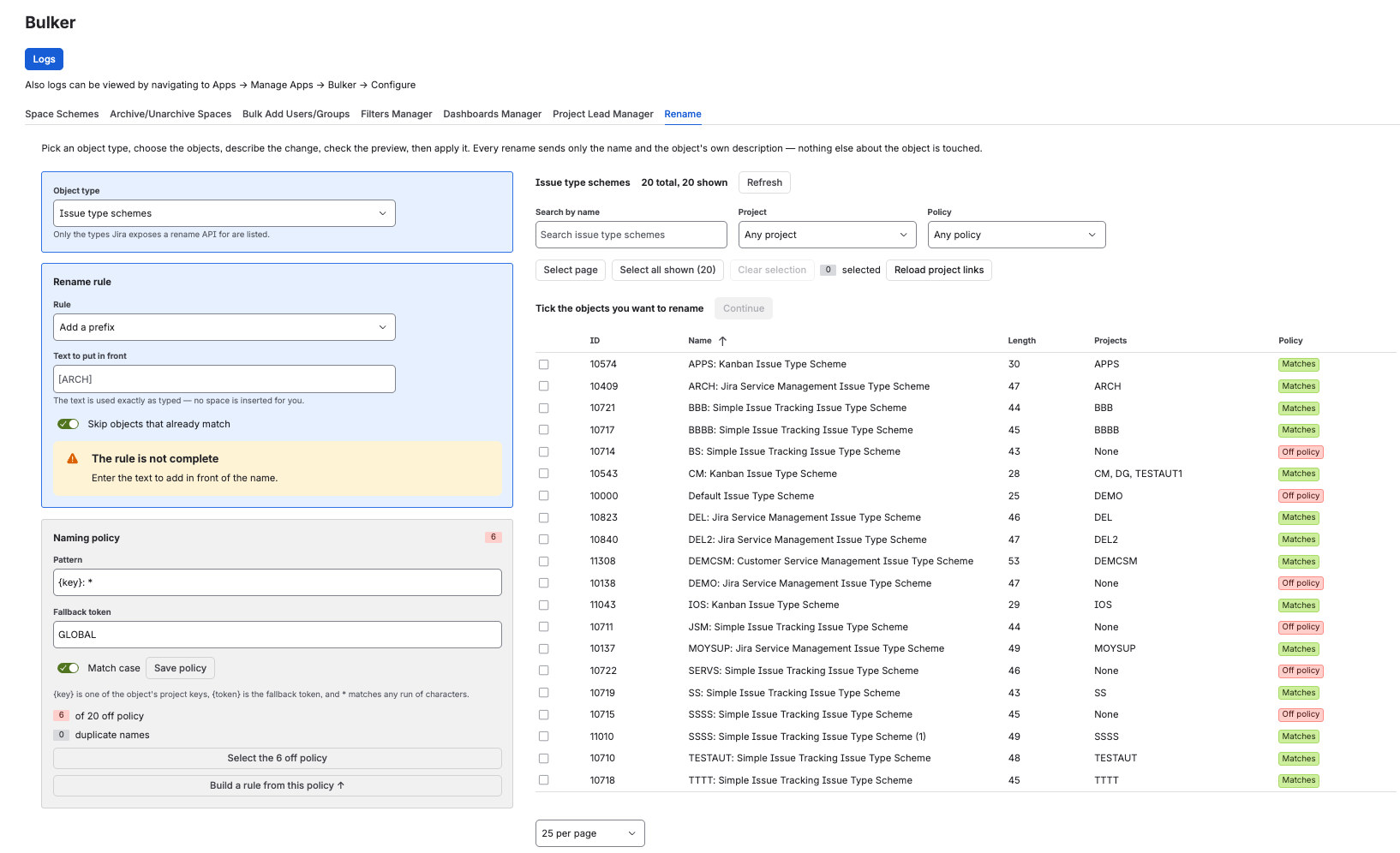
The Rename tab: settings on the left, objects on the right
How to bulk rename Jira schemes, step by step
Step 1 — Pick the object type
Open Settings → Apps → Bulker → Rename and choose a type in Object type. Bulker loads every object of that type and shows each one's name, length and the projects it is used by.
Project links for some types take a moment longer to load. Until they are loaded, the project filter is disabled and the project-key rule stays off — Bulker will not guess that an object is "on no projects" when it simply hasn't asked Jira yet.
Step 2 — Find and tick the objects
Narrow the list on the right with Search by name, Project and Policy, then tick the objects you want. Select page and Select all shown tick everything the current filters leave on screen.
The line above the table always says how many objects are ticked, and that is the number that will be renamed — nothing else on the page decides it.
Step 3 — Describe the change
The Rename rule card on the left offers four rules:
| Rule | What it does | Example |
|---|---|---|
| Add a prefix | Puts your text in front of the name, exactly as typed | Default Notification Scheme → [ARCH] Default Notification Scheme |
| Add a suffix | Adds your text at the end | Screen Scheme → Screen Scheme (legacy) |
| Find and replace | Replaces every literal occurrence, optionally case-insensitive | Copy of → (nothing) |
| Add the project key | Prefixes the key of the object's project, e.g. {key}: |
Kanban Screen Scheme → CP: Kanban Screen Scheme |
For Add the project key, an object used by exactly one project gets that project's key. Objects used by several projects, or by none, get the fallback token you set — for example GLOBAL — or are left out of the run if you leave the token empty.
Keep Skip objects that already match on to leave alone names that already start with the text you are adding.
Step 4 — Confirm in the preview
Press Continue. A dialog opens with the count in its title — "Rename 2 issue type screen schemes?" — and a table of every ticked object with its current name and what it becomes. Rows Bulker cannot rename (a name too long, a name already taken) are marked with the reason, and renaming stays off until they are resolved.
Press Rename to run it. The result lists each object with Done or Failed and the reason.
Undo a rename
Bulker keeps the previous names. After a run, Undo the last rename restores them and reports "Restored · Skipped · Failed".
NOTE: Objects renamed again after the run are left alone, so an undo never overwrites a newer change. An undo cannot itself be undone.
Set a naming policy and fix what's off
A naming policy is a pattern your names should follow, saved once for the whole site. In the Naming policy card:
{key}stands for one of the object's project keys{token}stands for the fallback token*matches any run of characters
For example, {key}: * means "starts with a project key and a colon". Bulker then shows how many objects are off policy and how many names are duplicated, and the Policy filter above the table narrows the list to them.
Two buttons turn the policy into work:
- Select the N off policy ticks exactly the objects that don't match.
- Build a rule from this policy fills the rename rule above so that renaming brings names in line with the pattern.
Then continue from Step 4. If someone else saved a newer version of the policy in the meantime, Bulker refuses to overwrite it and shows who changed it and when.
When Jira says no
Some renames are refused by Jira itself, and Bulker shows Jira's own explanation rather than a generic error. Notification schemes used by team-managed projects are a common case: Jira only allows renaming notification schemes of company-managed projects. Filter names are unique per owner, so whether a filter name is already taken is only known when the rename runs.
What changed in 6.2.0
The Rename tab shipped in 6.1.0 and was reworked four days later.
- Settings on the left, objects on the right. The object type and the rename rule sit in blue cards on the left, the naming policy in a grey card below them, and the filters and the table fill the right-hand side.
- Confirm before anything changes. Continue opens the dialog described above, and it holds the only button that renames.
- Filter by policy. A Policy filter next to Project narrows the table to objects that are off policy, that match it, or that share a name.
- One button, one action. Select the N off policy and Build a rule from this policy each do exactly one thing.
- A table that holds still. The Projects column shows up to six keys plus "+N more", with the full list on hover, and rows no longer change height while a rule is being typed.
- Reliable on unstable networks. When the connection to Jira drops in the middle of a request, Bulker now retries automatically — the same way it already handled rate limits and temporary Jira errors — instead of showing "Jira could not be read". This applies to every Bulker operation, not only renaming.
Scheme assignment that reports what happened
- Issue security schemes. Jira applies these in the background. Bulker now waits for Jira to finish and reports the real outcome — previously a successful assignment was recorded as an error.
- Priority schemes. When a project's issues use priorities the new scheme doesn't contain, Bulker maps them to the identically named priority in the target scheme when there is one, otherwise to the scheme's default. Jira used to reject these assignments outright.
- Long-running assignments. If Jira is still working when Bulker's wait ends, the operation is reported as in progress with its Jira task reference, so it's clear the assignment was accepted rather than lost.
- Field configuration schemes use Jira's newer field-schemes interface where a site has it, and fall back to the previous one automatically where it isn't enabled yet.
- Groups in project roles are recorded by group identifier rather than by name, so renaming a group no longer affects the roles Bulker assigned.
Sharing and role fixes
- Removing a group's access to a filter or dashboard now always works. Before, it could report success while leaving the access in place. Adding a group that already has access no longer creates a duplicate.
- Bulk Add Users/Groups shows Jira's real reason when someone can't be added — for example a plan restriction — instead of always saying "Actor may already be in this role", and it no longer repeats the name in the message.
An operation log you can trust
- A large operation no longer wipes the history. Each operation keeps up to 25 detailed failures plus one summary line, so earlier entries stay in the log.
- Totals add up. The summary reads "Operations: total — succeeded, failed, still running", and failures are counted even after older entries have rotated out of the log.
- "In progress" gets resolved. Operations Jira was still applying when Bulker stopped waiting are checked each time Bulker opens, and their row changes to Done, Failed, or Unconfirmed if Jira no longer has a record of the task.
- Jira's own explanation now appears next to the scheme name when Jira refuses an operation, instead of a raw technical response.
How to get these updates
Both releases need no new permissions. Sites already on Bulker 6 received them automatically. On a site that runs an older major version, go to Settings → Apps → Manage apps, find Bulker and approve the update once.
FAQ
Which Jira objects can Bulker rename?
Issue type schemes, issue type screen schemes, notification schemes, issue security schemes, screens, screen schemes, permission schemes and filters. Workflows, boards, field configurations and dashboards are not offered.
How do I add the project key to many scheme names at once?
Choose the rule Add the project key with a template such as {key}: , set a fallback token like GLOBAL for objects used by several projects, tick the objects and press Continue.
How do I enforce a naming convention across a whole Jira site?
Save a pattern such as {key}: * as the naming policy, press Select the N off policy to tick every object that doesn't match, then Build a rule from this policy and rename. The policy is stored for the site, so the next admin sees the same standard.
How do I undo a bulk rename in Jira?
Right after a run, press Undo the last rename in the Rename tab. Bulker restores the previous names and skips any object that has been renamed again since.
Does renaming a scheme change which projects use it?
No. Bulker sends only the name and the object's existing description. Project associations, permissions, screens and notification settings stay exactly as they were.
Can I rename workflows, boards, field configurations or dashboards in bulk?
Not with Bulker. Jira's workflow update API has no name field, boards have no public rename API, and the field configuration API has been removed. For dashboards Jira's update replaces the whole dashboard, including its sharing, so Bulker does not offer it.
Why is the project filter greyed out?
The project links for that type haven't loaded yet. Press Load project links; until Jira has answered for every object, Bulker won't filter by project or apply the project-key rule.
Do I need to approve new permissions for Bulker 6.1 or 6.2?
No. Neither release adds permissions. Sites on Bulker 6 updated automatically; a site on an older major version approves the update once in Settings → Apps → Manage apps.
What does "Unconfirmed" mean in the operation log?
Jira had not finished the operation when Bulker stopped waiting, and by the time Bulker checked again Jira no longer kept a record of that task. The change most likely went through, but it can't be confirmed — check the project settings to be sure.
Try Bulker
Bulker takes the repetitive side of Jira administration off your hands — schemes, roles, project leads, archiving, and now bulk renaming. For more ways to cut down admin busywork, see Bulk Jira admin: how to save 3 hours a week, and for the previous release, the Bulker release notes — July 2026.