How to Run a Physical Asset Audit in Jira (Scan with Your Phone)
Scan Jira & JSM assets with your phone. A step-by-step guide to running audit-ready physical asset inventory inside Jira — no spreadsheets, no external database.
Still doing your annual Jira asset audit with an Excel export, a clipboard, and a week of manual ticket updates? That process looks fine on paper — until an auditor asks "show me who verified this laptop, and when." Then the spreadsheet falls apart.
This guide shows you how to scan Jira and JSM assets with your phone and turn physical inventory into a repeatable, audit-ready workflow that lives inside Jira — no external database, no reconciliation loop.
Why spreadsheet-based asset audits break
Manual physical inventory has three failure points:
- No source of truth. Your CMDB lives in Jira Service Management Assets, but the audit happens in a spreadsheet. The two drift apart the moment you export.
- No accountability. A cell that says "found" doesn't tell you who scanned it or when. That's exactly the evidence ISO 27001 and SOC 2 auditors want.
- No repeatability. Every quarter you rebuild the same process from scratch and manually reconcile "scanned vs. missing."
The fix is to keep the audit where your assets already are: in Jira.
What you need
- Jira Service Management with Assets — your object schemas and CMDB.
- Scannix by MOY Apps — an Atlassian Forge app that adds physical audits on top of Assets.
- The free Scannix iPhone app — for on-the-floor scanning with QR codes and barcodes.
Because Scannix is built on Atlassian Forge, your asset data stays in your Atlassian site — nothing is copied to an external server.
Step 1 — Plan the audit in Jira
Start in Jira, not on your phone. Create an audit and define its scope so scanners only see the objects that matter:
- By object schema — e.g. "Hardware" or "IT Equipment".
- By object type — e.g. only Laptops, or only Servers.
- By AQL — use Assets Query Language for precise selection, like
objectType = "Laptop" AND "Location" = "Berlin Office".
The audit becomes a live object in Jira with a defined target list of assets to verify.
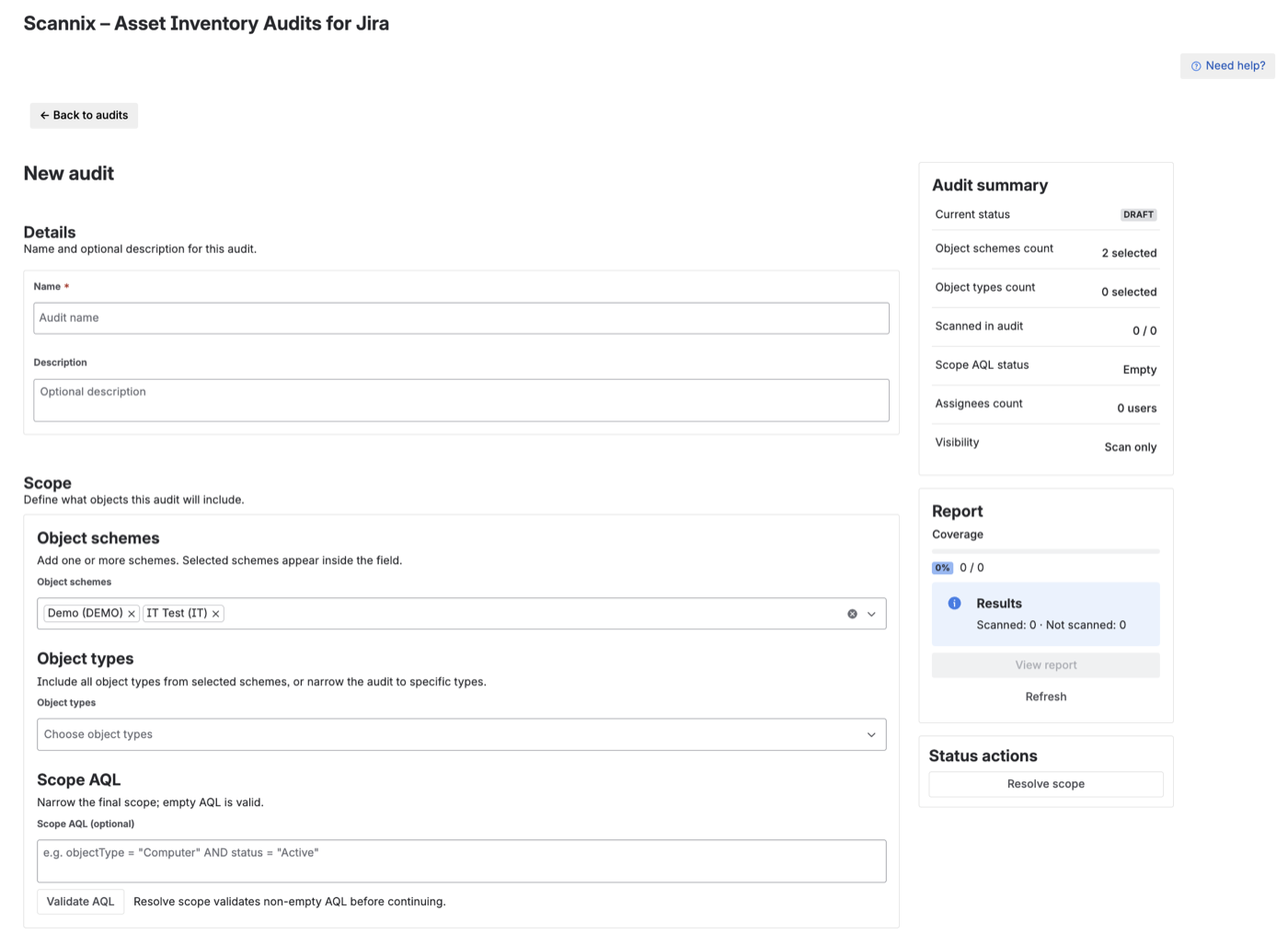
Creating an audit — scope it by schemas, types, or AQL
Step 2 — Assign it
Assign the audit to the people doing the walk-through. Each person sees only their own audits in the mobile app, so a five-office inventory doesn't turn into one giant, confusing list. Assignments keep large audits organized and make the "who did what" question answerable later.
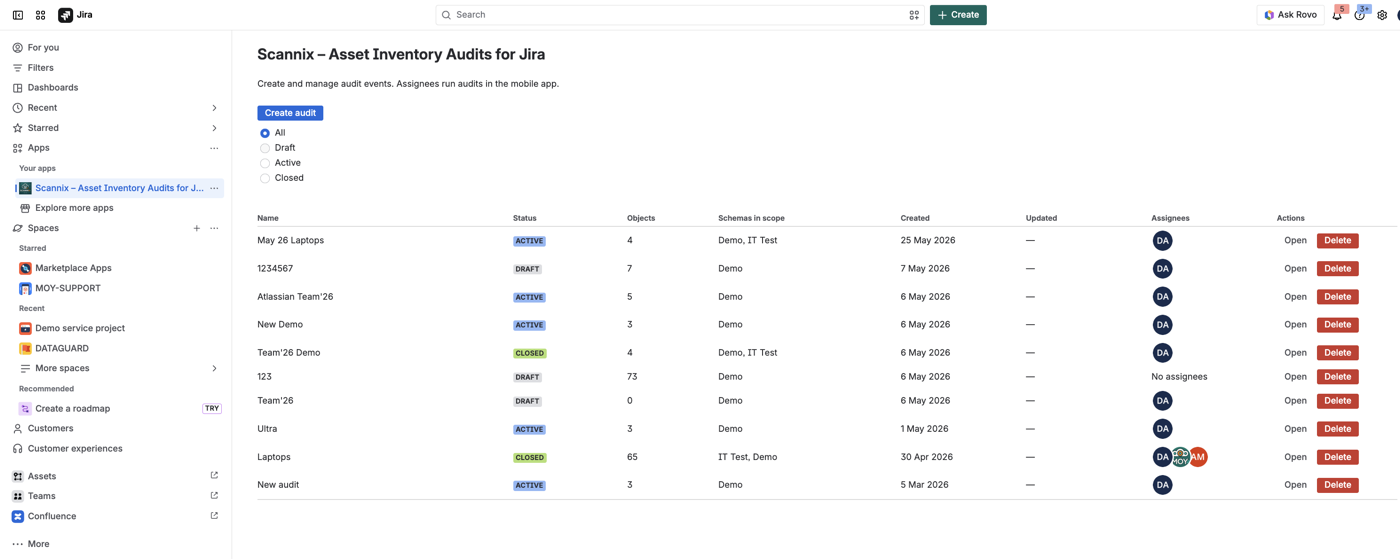
Every audit tracks its status, scope, and assignees
Step 3 — Scan with your phone
Open the free iPhone app and start scanning. Point the camera at the asset's QR code or barcode — the app matches it against the audit's target list in real time.
Key things that make floor scanning actually work:
- Offline-ready — warehouses and server rooms have no Wi-Fi. Scan offline; sync when you're back in range.
- Duplicate-protected — scan the same asset twice and the app flags it instead of double-counting.
- No relabeling project — it reads the QR codes and barcodes your equipment already carries.
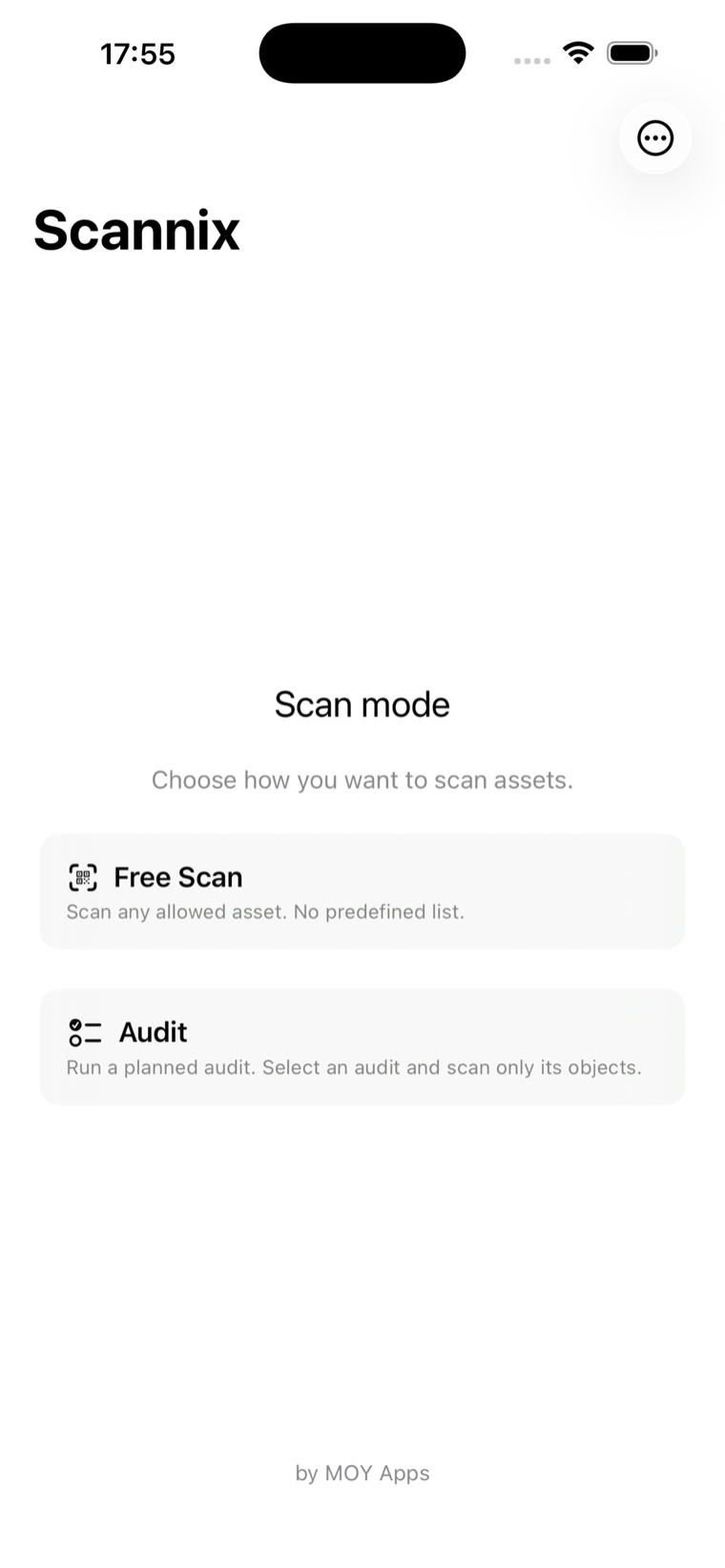
Scan mode on iPhone — free scan or a planned audit
Step 4 — Report live: scanned vs. missing
As scans come in, the audit updates in Jira in real time. You see, at a glance:
- Scanned vs. missing — which target assets are verified and which are still unaccounted for.
- Per-user timestamps — exactly who scanned each object and when.
- CSV export — pull the full result set for finance, auditors, or your own records.
This is the moment the spreadsheet approach can't match: the report is generated from real scan events, each attributed and timestamped.
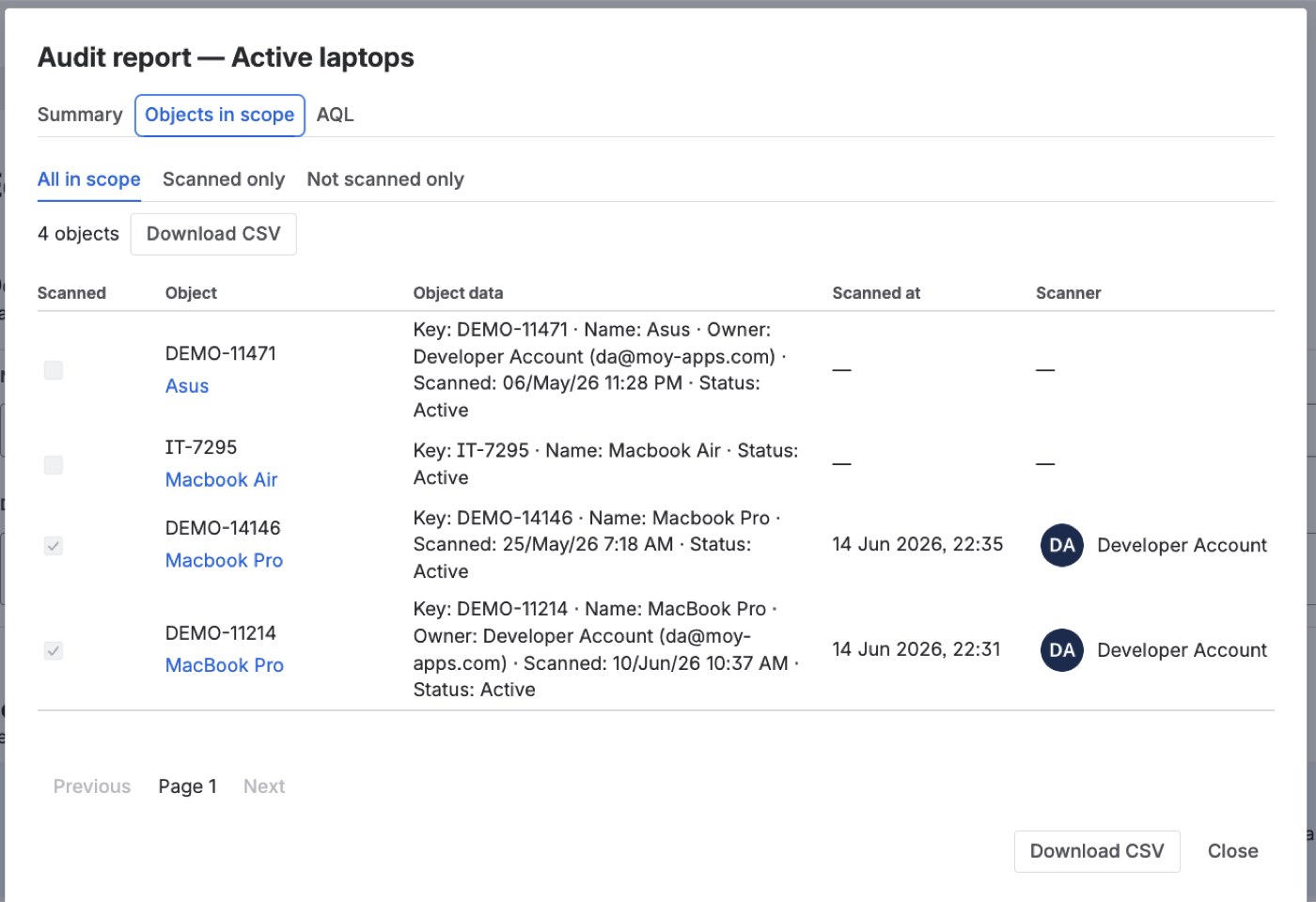
The audit report — scanned vs. not scanned, per object, per user
Step 5 — Act on the gaps
An audit is only useful if missing assets get resolved. Link the audit to a Jira issue — a "Scannix Audit" custom field puts a live progress card right inside the issue view — and raise follow-ups for anything missing: assign an owner, investigate, mark as lost or found, close the loop. Because it's all in Jira, remediation uses the workflows and SLAs your team already runs.
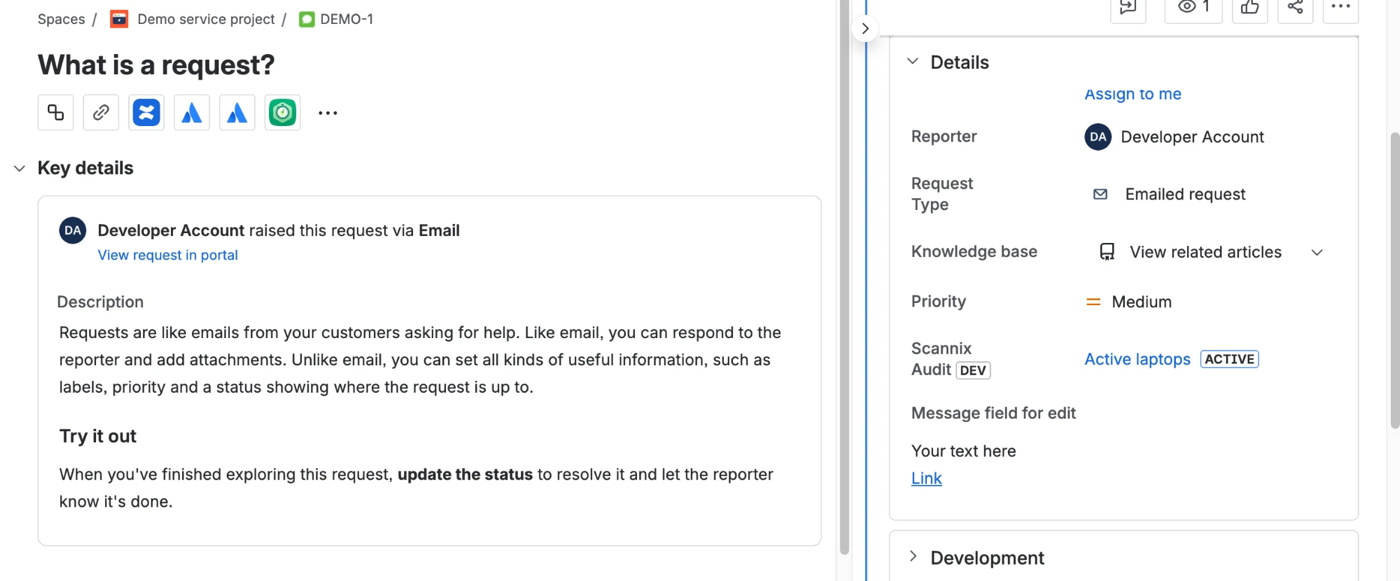
Every audit is a first-class citizen in Jira — custom field, JQL, deep links
Step 6 — Automate the cycle
Physical inventory shouldn't be a fire drill you remember once a year. With Jira Automation, you can schedule the whole cycle:
- Automatically create and start an audit monthly, quarterly, or on whatever control cadence you need.
- Close completed audits when they're done.
- Raise follow-up tickets for anything still missing.
Set it once and your asset verification runs on a schedule — no one has to remember to kick it off.
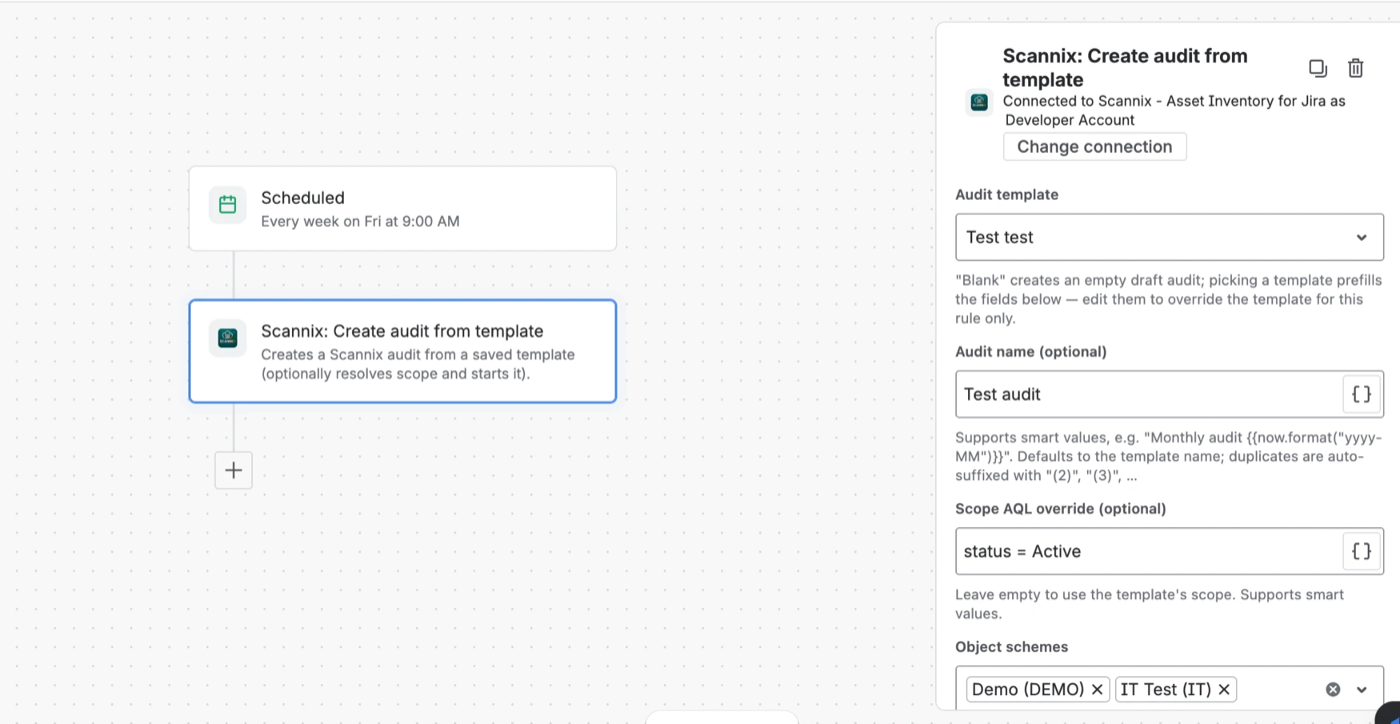
A scheduled rule creates the next audit from a template — auto-create, start, close
Built for ISO 27001 and SOC 2 evidence
If you're running an ISO 27001 or SOC 2 program, physical asset inventory isn't optional — and auditors want more than a list.
Scannix produces exactly the evidence they ask for:
- Timestamped — every verification carries a date and time.
- Per-user — each scan is attributed to the person who performed it.
- Exportable — CSV output you can attach directly to audit evidence.
This maps cleanly to controls like ISO 27001 A.5.9 (inventory of information and other associated assets): you can demonstrate that assets are inventoried, ownership is clear, and verification happens on a defined schedule — with proof, not promises.
NOTE: Scannix doesn't certify you — it produces the asset-inventory evidence these frameworks ask for. The certification work stays yours; the paper trail gets a lot easier.
FAQ
Do I need to add custom QR codes or barcodes to my assets?
No. Scannix reads the existing QR codes and barcodes on your equipment. There's no relabeling project and no predefined-barcode setup required.
Does Scannix work offline?
Yes. You can scan without a connection — useful in server rooms and warehouses — and the results sync to Jira once you're back online.
Where does Scannix store my asset data?
Inside your own Atlassian site. Scannix is built on Atlassian Forge, so your asset and audit data stays in Atlassian and is not copied to any external database.
Can I automate recurring audits with Scannix?
Yes. Jira Automation can create, start, and close audits on a schedule (monthly, quarterly, or any cadence), so recurring inventory runs without manual effort.
Does this help with ISO 27001 or SOC 2?
Yes. It generates timestamped, per-user, exportable inventory records — the kind of asset-verification evidence auditors typically request for controls like ISO 27001 A.5.9.
How do I find assets that were not scanned in Scannix?
Open the audit report in Jira: it splits scanned vs. not scanned per object, and the AQL tab gives you a ready-made query for the missing ones — everything exports to CSV.
How do I schedule a monthly inventory audit in Jira?
Save an audit as a template, then add a scheduled Jira Automation rule that creates and starts an audit from that template every month — and closes it when done.
Start your first audit
Stop reconciling spreadsheets against your CMDB. Run physical asset audits where your assets already live — inside Jira — and scan them with the phone in your pocket.