Portal Suite Extension 3.0 — SLA on the Portal, Now Free
Show SLAs to customers, surface linked-request SLAs for dev teams, and let requesters edit their tickets — the JSM portal suite is now free.
Customers keep asking "where is my SLA?", internal teams miss client deadlines because the clock lives in a project they never open, and requesters ping agents for every tiny field change. Portal Suite Extension for Jira Service Management 3.0 closes all three gaps — and the app is now completely free.
Public SLA — show customers exactly the SLAs you choose
Jira Service Management tracks SLAs meticulously, but customers can't see them on the portal. Portal Suite Extension publishes the metrics you select to the request view — on the JSM customer portal and in Customer Service Management spaces.
- Per-project selection: only SLAs you mark as visible ever appear
- Optional JQL condition per SLA — e.g. show "Time to resolution" only for
priority = High - Four display formats: absolute dates, due-date centric, time remaining/elapsed, or matching JSM's native SLA style
- Portal customers don't need a Jira license to see the panel
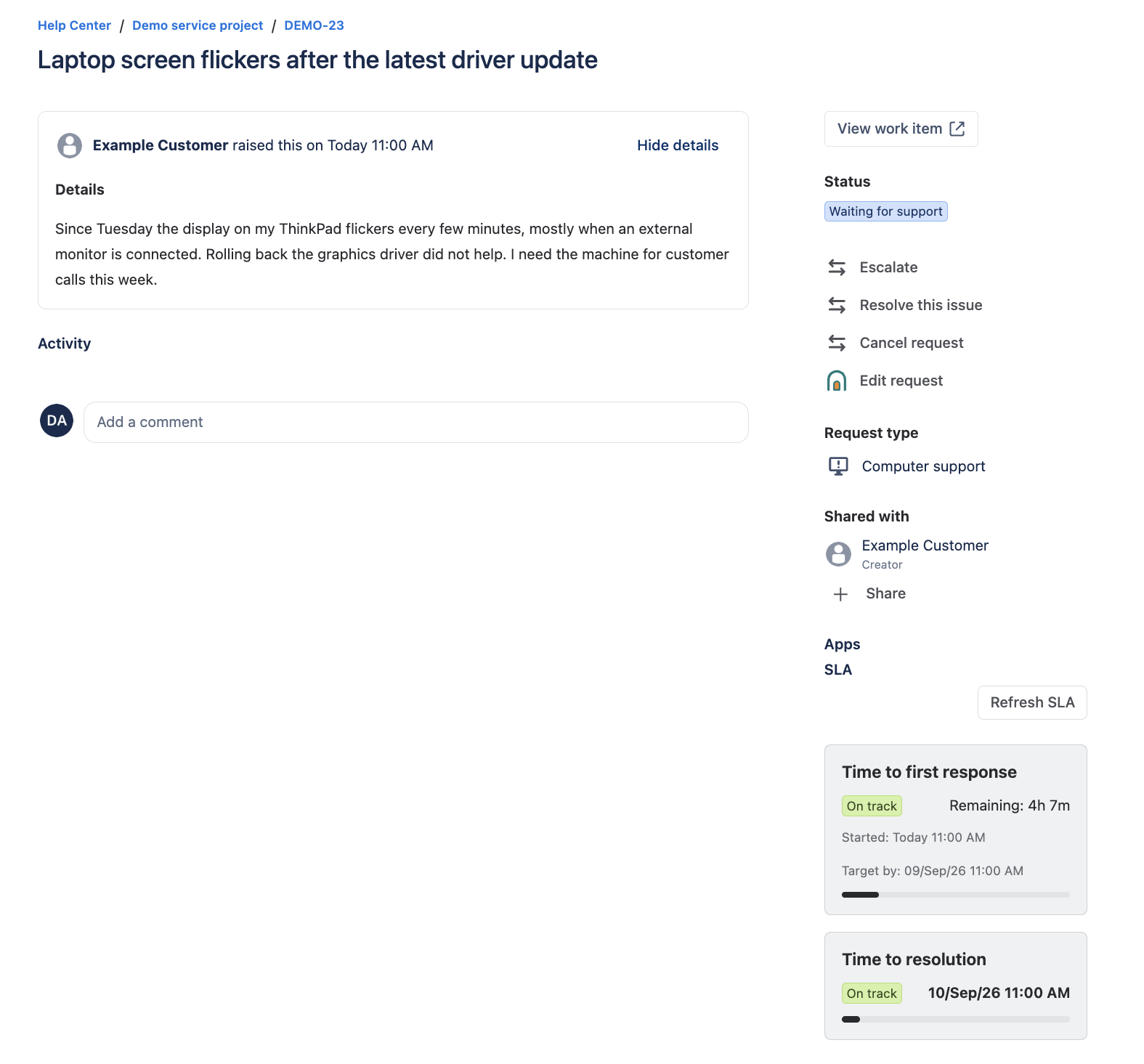
What the customer sees: live SLA status on their own request
Linked SLA — the countdown, where your team actually works
A support request lives in JSM, but the fix happens on a linked issue in a Software project. The team working on it never sees the customer SLA — until it's breached. Linked SLA shows the SLA of linked JSM requests directly on any Jira work item, whatever the project type.
- Per-SLA opt-in with link scope: all links, children, parents, or specific link types, plus an optional JQL condition
- Compact status rows grouped per linked request, sorted most-urgent first, with a breached / at-risk / met summary
- Available as a sidebar panel and a full-width issue panel, with one-click refresh
- Fully permission-checked: users only see SLAs of requests they can access
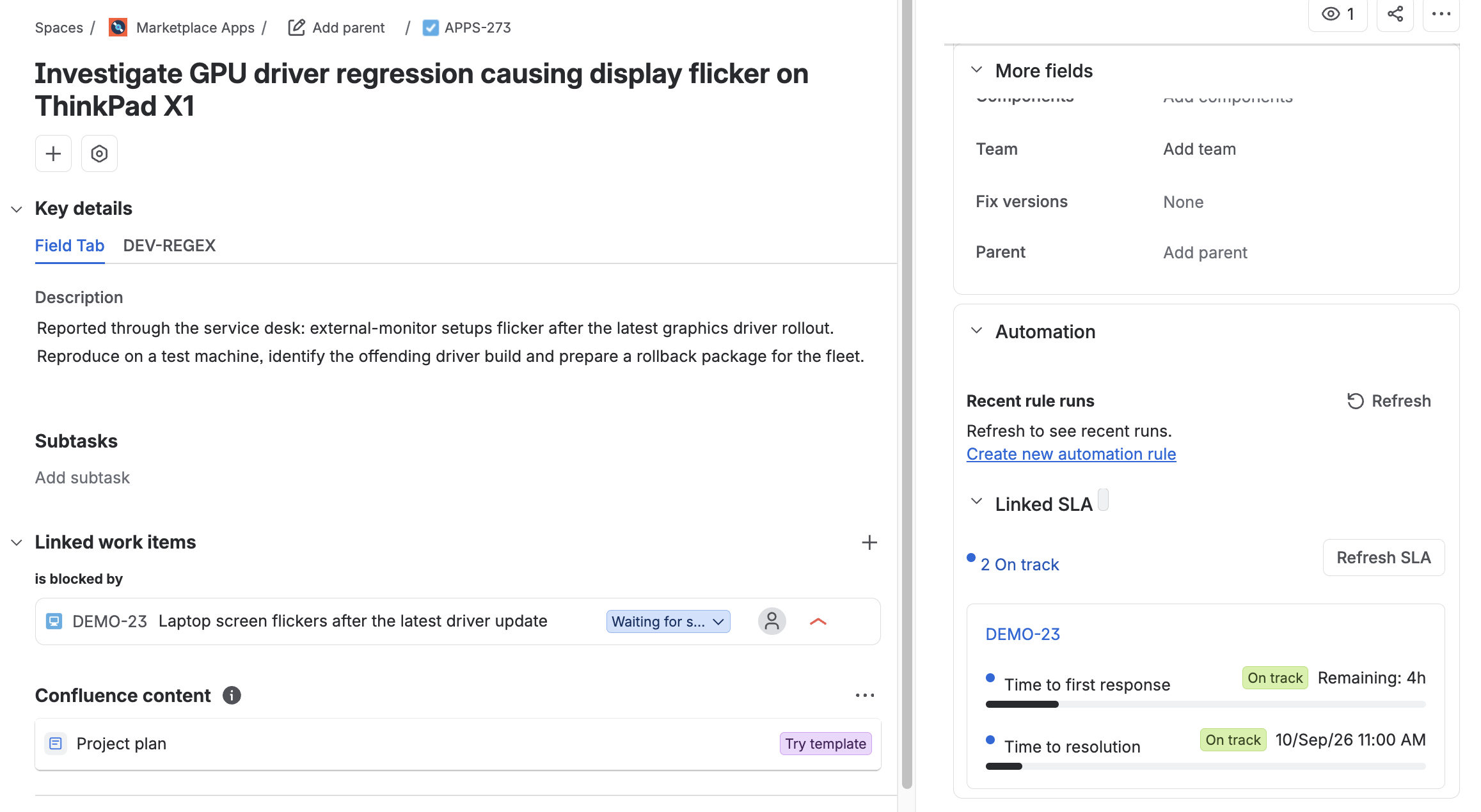
The customer deadline, on the issue the developer actually has open
Portal Edit — let requesters fix their own tickets
Wrong priority, missing due date, a typo in the summary — today each of those is a comment to an agent. Portal Edit adds an "Edit request" action to the portal where customers update exactly the fields a project admin has approved.
- Field whitelist per project, optionally restricted by JQL and by user groups
- All standard field types: summary, description, text, numbers, dates, priority, labels, selects, checkboxes, URLs
- Descriptions support Markdown (bold, lists, links) and are stored as rich text
- Every save is re-validated server-side, rate-limited, and can leave an internal audit comment for agents
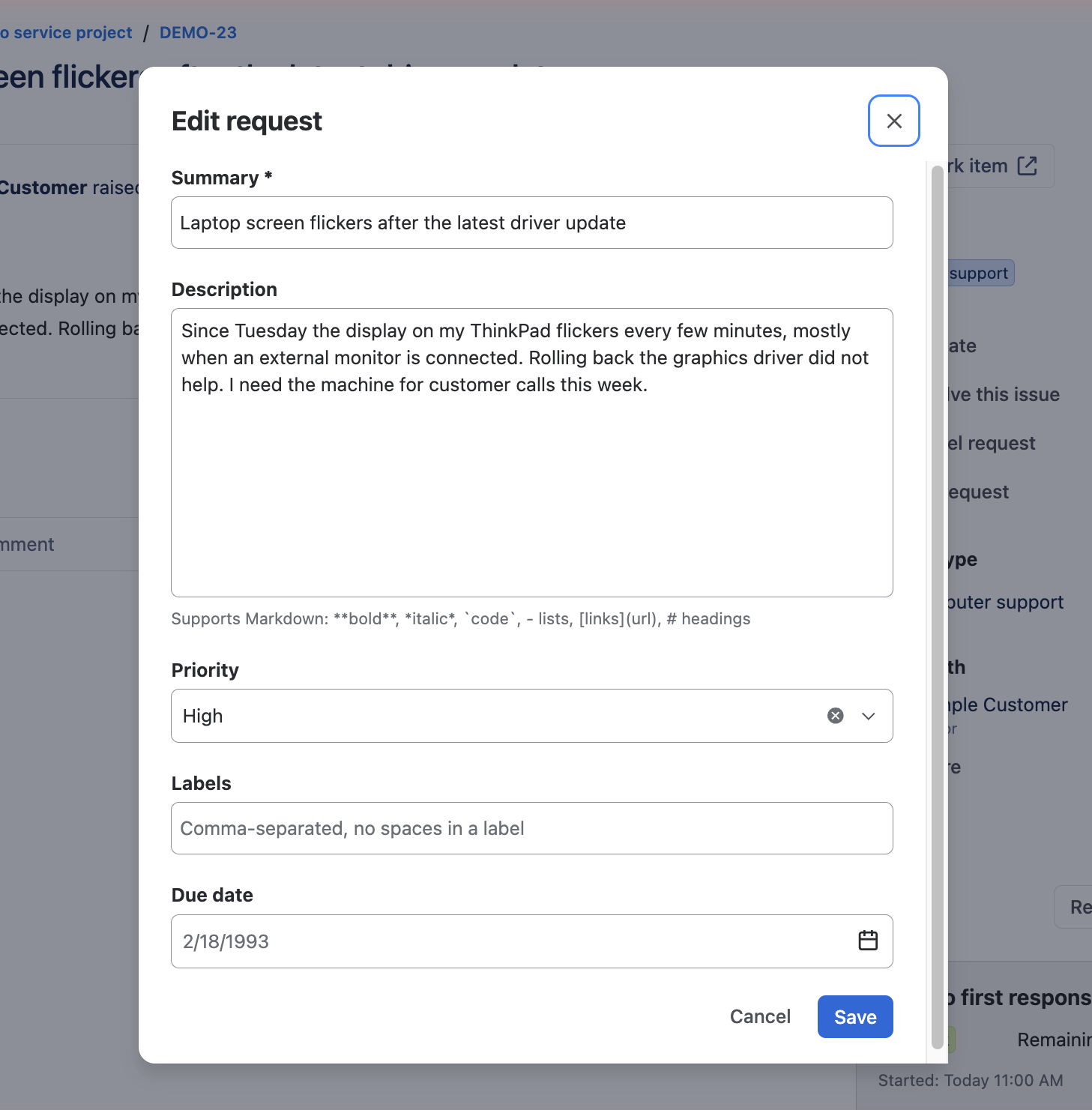
Requesters fix their own tickets — only in the fields an admin approved
NOTE: Portal Edit never widens access. Customers can only edit requests they already see on the portal, and only the fields an admin explicitly enabled.
Free, and built to stay on Atlassian
Version 3.0 makes the app free for everyone. It runs entirely on Atlassian Forge with zero data egress — no external servers, nothing leaves your Atlassian site — meeting the criteria of the Runs on Atlassian program. The UI ships in 11 languages: English, German, Spanish, French, Italian, Japanese, Dutch, Polish, Portuguese, Russian and Chinese.
Getting started
- Install Portal Suite Extension for Jira Service Management from the Marketplace.
- Open Project settings → Apps → Public SLA in a service project.
- Turn on the SLAs to publish, enable "Show on linked issues" where useful, and whitelist editable fields for Portal Edit.
- Save — the portal panel, linked-SLA views and the Edit action follow your configuration immediately.
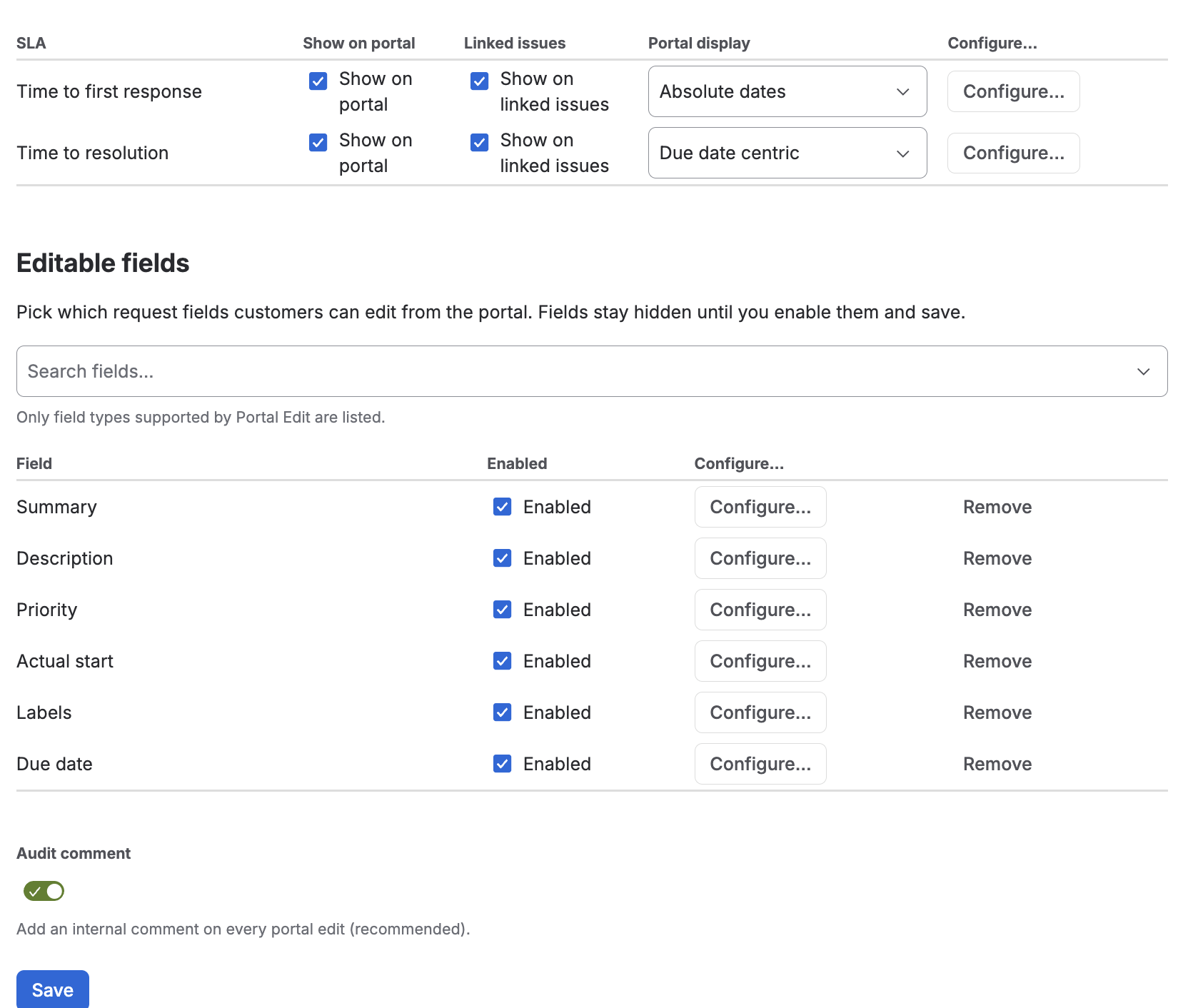
One settings page: which SLAs go public, where they show, what customers may edit
FAQ
How do I let a reporter or customer edit their own request in Jira Service Management?
Jira Service Management lets agents change a request, but the person who raised it cannot edit anything from the customer portal — they have to add a comment and wait for an agent. Portal Edit adds an Edit request action to the JSM portal, so the reporter updates their own ticket: summary, description, priority, dates, labels, selects and more. A project admin whitelists which fields are editable, optionally narrowed by JQL or user group, and every save is re-validated on the server — so customers can only ever change the fields you opened, on requests they already see in Jira.
Do portal customers need a Jira license?
No. The SLA panel and the Edit action work for portal-only customers without a Jira license, including unlicensed accounts on JSM and Customer Service Management portals.
How do I control which SLAs customers see?
Open Project settings → Apps → Public SLA, toggle "Show on portal" per SLA, and optionally add a JQL condition. Nothing is shown unless you enable it — new SLAs stay hidden by default.
Can internal teams see customer SLAs without opening JSM?
Yes. With Linked SLA, any Jira work item linked to a JSM request shows that request's SLA status right on the issue view — in Software, Business or JSM projects — provided the viewer has permission to see the linked request.
How do I let customers edit only specific fields?
In the Editable fields section of the app's project settings, add fields to the whitelist, then restrict them by JQL or user groups if needed. Every save is validated again on the server, so the whitelist can't be bypassed.
Does the app send data outside Atlassian?
No. The app is built on Atlassian Forge with zero data egress: no external servers, no third-party analytics, and all data stays inside your Atlassian site.
Which languages does the app support?
Eleven: English, German, Spanish, French, Italian, Japanese, Dutch, Polish, Portuguese, Russian and Chinese. The UI follows the user's portal locale where available and falls back to English per string.
How do I show SLAs to customers on the Jira Service Management portal?
Install Portal Suite Extension, open Project settings → Apps → Public SLA and switch on the SLAs you want published. They appear in the customer's request view within seconds — no Jira license needed on the customer side.
How can developers see the SLA of a linked support ticket?
Enable Linked SLA for the metric and choose the link scope (all links, children, parents or specific link types). Any Jira work item linked to that JSM request then shows the countdown on the issue view, in Software and Business projects too.
Is Portal Suite Extension really free?
Yes. Version 3.0 makes the whole app — Public SLA, Linked SLA and Portal Edit — free for everyone on the Atlassian Marketplace.
How do I stop a specific SLA from appearing on the portal?
Turn its "Show on portal" toggle off in the project settings, or attach a JQL condition so it only appears for the requests you choose. Nothing is public unless you enable it — new SLAs stay hidden by default.
Try it on your portal
Portal Suite Extension for Jira Service Management is free on the Atlassian Marketplace. Install it, publish your first SLA in two minutes, and give your customers the transparency they keep asking for.