How to change a Jira dashboard owner in bulk and fix sharing
Change the owner of many Jira dashboards at once when someone leaves, and fix who can view and edit them, with Bulker's Dashboards Manager tab.
Someone leaves the company, and a week later the questions start: nobody can edit the release board, the team dashboard belongs to a deactivated account. If you need to change a dashboard owner in Jira for one dashboard, Jira's own admin screens will do it. For twenty dashboards it is twenty rounds of the same clicks.
The Dashboards Manager tab in Bulker does the same job for as many dashboards as you tick: pick a new owner once, apply it to all of them, then fix who can view and edit them in the same place. This guide walks through both, shows what the log records, and says where Jira itself can refuse.
What the Dashboards Manager does
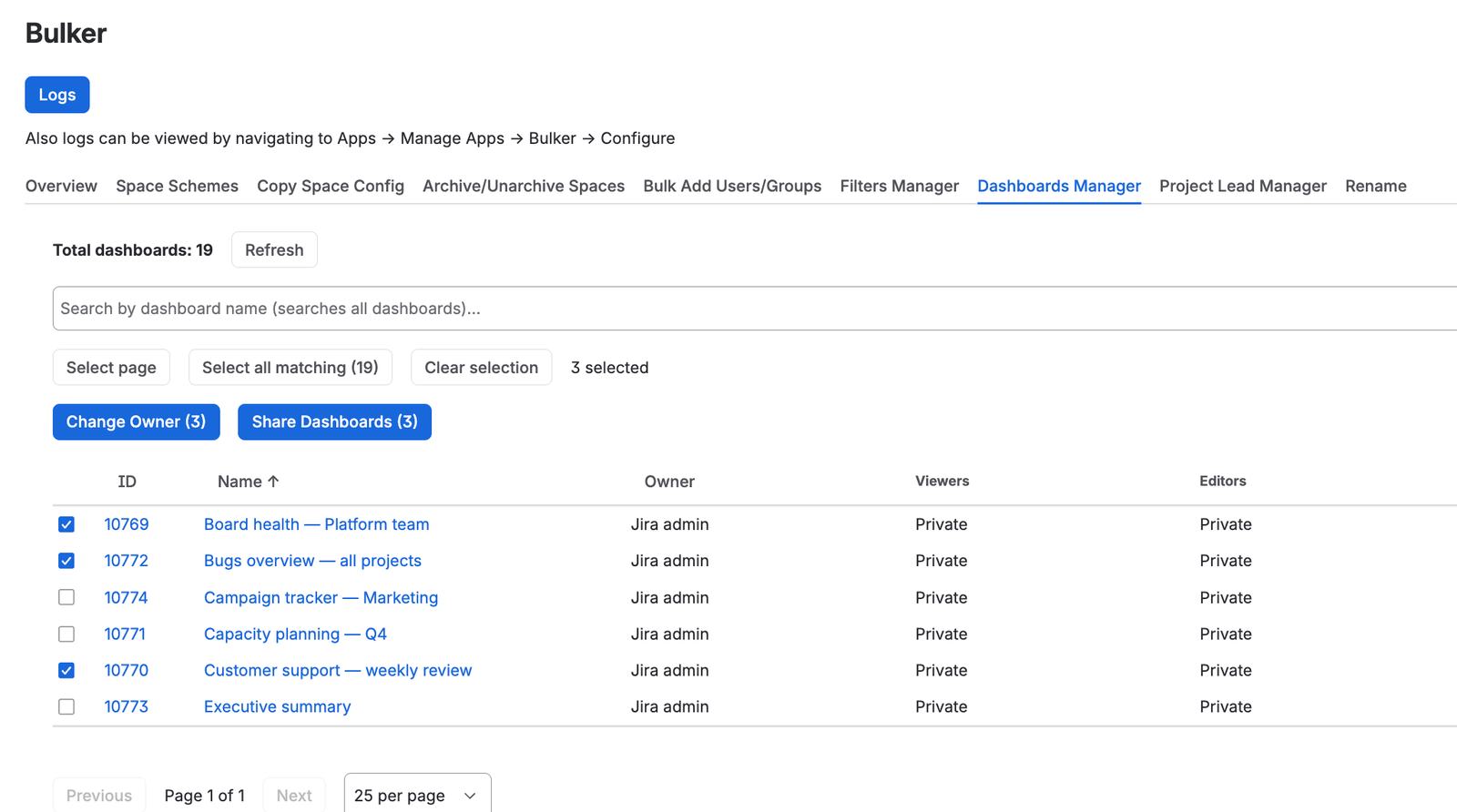
Owner, viewers and editors of every dashboard on one page
Open Settings → Apps → Bulker and switch to the Dashboards Manager tab. You get a table of your site's dashboards with the columns ID, Name, Owner, Viewers and Editors. ID and Name link to the dashboard itself in a new tab. Viewers and Editors show the current sharing as Jira reports it — "Private" when nothing is shared, otherwise entries such as "Group: jira-software-users", "Project: Payments - Developers" or "Logged in users on this instance".
Above the table, the line Total dashboards: N gives the count, and the search box Search by dashboard name (searches all dashboards)... filters by name. The search runs on the Jira side, so it covers every dashboard, not just the page on screen — Bulker loads only the page you are looking at, which is why the tab stays fast on sites with thousands of dashboards. ID, Name and Owner are sortable, and the order applies to the whole set. At the bottom you choose 10 per page, 25 per page or 50 per page and move with Previous and Next.
Two actions sit above the table: Change Owner (N) and Share Dashboards (N). The number in brackets is how many dashboards you have ticked, and that is exactly how many the action will touch.
The Filters Manager tab next to it is the same workflow for saved filters: same table, same selection, same owner and sharing dialogs.
See the guide: How to change a Jira filter owner in bulk (and share filters).
How to change a Jira dashboard owner in bulk, step by step
Step 1 — Find the dashboards
Search by name, or sort by Owner so the departed owner's dashboards sit together.
Step 2 — Tick them
Tick rows one by one, or use the buttons:
- Select page ticks every dashboard on the current page. Press it again on a fully ticked page and it unticks them.
- Select all matching (N) ticks every dashboard that matches your current search, across all pages. Bulker collects the IDs in batches and shows "Collecting matching dashboards… 120 / 1,340" while it works.
- Clear selection drops everything.
The count to the right — "37 selected" — is what will be processed. Your selection survives paging: tick a few on page 1, move to page 3, tick more, and all of them stay ticked. Changing the search text, however, resets the selection, so invisible rows never travel into a bulk operation by accident.
Step 3 — Pick the new owner
Press Change Owner (N). The dialog Change Dashboard Owner repeats the count — "Change owner for 37 selected dashboard(s)" — and offers a New Owner picker. Only real user accounts are accepted; if you pick an app, Bulker says "Please select a real user. Applications cannot be dashboard owners." and the button stays disabled.
Step 4 — Run it
Press Change Owner. Bulker sends the change to Jira's dashboard bulk-edit endpoint in chunks and shows "Changing owner… 20 / 37" while it runs. Temporary Jira errors and rate limits are retried automatically. When it finishes, a green banner reads "Changed owner for 37 dashboard(s)", the selection is cleared, and the table reloads with the new owner in the Owner column.
If Jira refuses some dashboards, the banner turns red: "Changed owner for 35 dashboard(s), 2 failed." followed by the first reasons Jira gave. Every dashboard is reported on its own, so one refusal never blocks the rest.
Bulker asks Jira to fix the name automatically if the new owner already has a dashboard with the same name, so a duplicate name doesn't stop the handover.
NOTE: Bulker runs the owner change with admin permissions, so you don't need to own the dashboards or have edit rights on them. The dashboards listed are the ones Jira returns to you as the acting admin; dashboards the Jira API doesn't show you won't appear in the table.
How to share many Jira dashboards at once, step by step
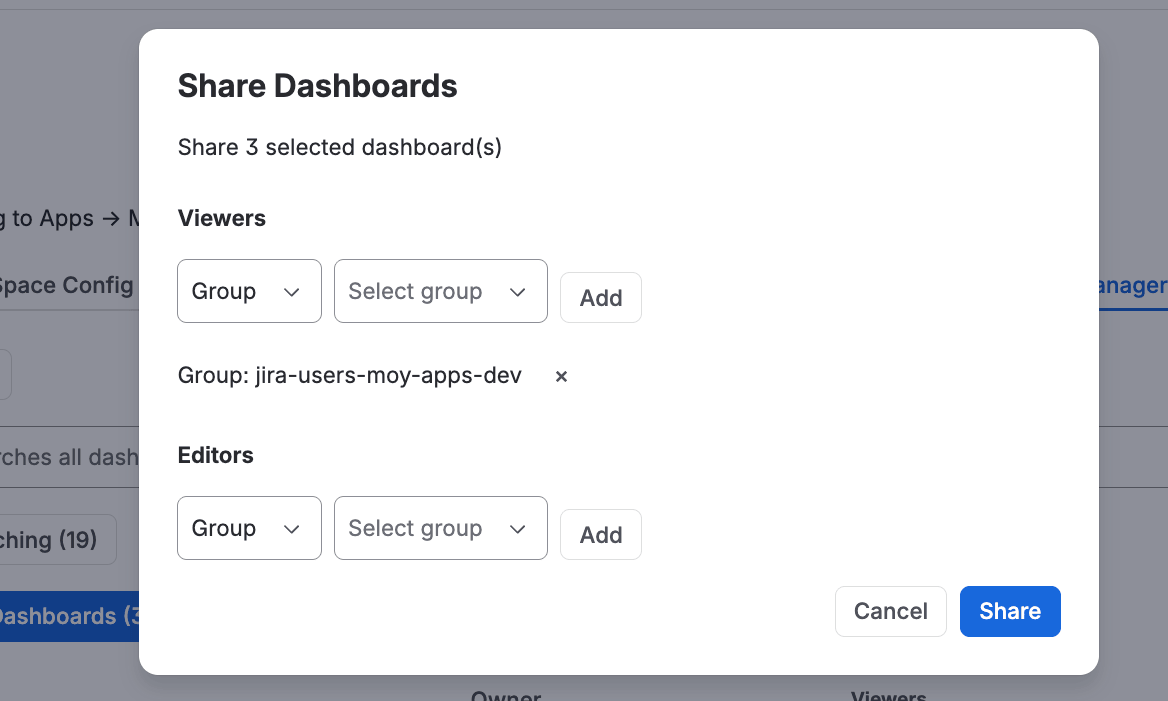
Add a group as viewer or editor, then press Share
A new owner is half of the job. Usually the leaver had also shared their dashboards with their own picks of groups and people, and that list now needs updating.
Step 1 — Tick the dashboards
Same as above: search, tick, or Select all matching (N).
Step 2 — Open the Share dialog
Press Share Dashboards (N). The Share Dashboards dialog shows "Share N selected dashboard(s)" and loads the existing sharing of everything you ticked, merged into one list under Viewers and one under Editors. An entry that exists on only some of the selected dashboards says so — "Group: finance (on 4 of 12)".
For selections over 50 dashboards the lists start empty, and the dialog says so: "Existing permissions are not shown for selections over 50 dashboards. Added permissions will be applied to all selected dashboards." Adding works at any size; Bulker only removes entries it has loaded, so to take access away, work in selections of 50 or fewer.
Step 3 — Add and remove
In Viewers you can add one of five kinds of access and press Add:
- Global — anyone, including people who are not logged in
- Logged in users — every logged-in user on the site
- Group — a Jira group
- User — a single user
- Project — everyone in a project, or, if you pick a role under All roles, only that project role
Editors offers Group, User and Project (with the optional role). Global and Logged in users are view-only options; Bulker doesn't offer them for editors.
To remove access, press the × next to an entry. Adding an entry that is already in the list is refused with "This permission is already in the list".
Step 4 — Save
Press Share. Bulker compares the lists with what it loaded and applies only the differences — every removal and every addition, each one to every ticked dashboard — with the progress "Applying permission change 1 / 3… 12 / 37 dashboards". Removal matches by what the permission is (this group, this user, this project role), not by Jira's internal permission ID, which is different on every dashboard.
The result line tells you what actually happened: "Successfully shared 37 dashboard(s); 4 change(s) skipped, the permission was already there; 2 removal(s) skipped, the permission was not there". A grant that was already in place counts as done, not as an error, and a removal of something that wasn't there is reported rather than hidden. When Jira refuses, its own message is shown instead.
Sharing never changes the owner: Bulker sends Jira only the two permission lists.
What the log shows
Every run writes to Bulker's operation log — the Logs button at the top of the page, or Apps → Manage Apps → Bulker → Configure. The table has the columns Timestamp, User, Space, Type, Description and Status, with the buttons 30 minutes, 7 days, 30 days and All to narrow the time range.
Dashboard operations appear with the Type Dashboard Owner Change or Dashboard Share Permission, and the Description names each dashboard: 'Changed owner of dashboard (ID: 10231) to "Dana Reyes"', 'Added VIEW permission on dashboard "Release board" (ID: 10231)', 'Deleted EDIT permission on dashboard "Release board" (ID: 10231)', or 'Failed to change owner for dashboard (ID: 10231): …' followed by Jira's reason. Status is Done or Failed. Skipped no-ops are logged too, as 'Already present: …' and 'Not present: …'.
Every operation is listed, successful ones included. One operation stores up to 2,000 rows in detail; anything beyond that is folded into a single line, "N more results of the same operation were not stored in detail", so a very large run can't push older history out of the log. The log keeps entries for 7 days on a trial, 45 days on the Standard edition and 365 days on the Advanced edition.
Limits and trial
The Dashboards Manager is part of every Bulker edition — it does not need the Advanced edition, which is only required for Bulker's automation actions.
On a trial, Bulker processes up to 10 dashboards per operation; ticking more shows "Trial limitation: You can only process 10 dashboards per operation. Please reduce your selection or purchase a license for unlimited access." before anything is sent to Jira. Trials are also capped at 20 operations per day and 100 in total. A paid license removes these limits.
For the performance side of the tab — paging, server-side search, "Select all matching" — see the Bulker release notes — July 2026.
FAQ
How do I change the owner of many Jira dashboards at once?
In Bulker → Dashboards Manager, search or sort by Owner, tick the dashboards (or press Select all matching), press Change Owner, pick the new owner and confirm. Each dashboard is reported as changed or failed with Jira's reason.
What happens to a Jira dashboard when its owner leaves the company?
The dashboard stays, but nobody can edit it until an admin reassigns the owner. Jira's admin screens do that one dashboard at a time; the Dashboards Manager does it for every dashboard you tick in one run, with admin permissions, so you don't need to own them yourself.
How do I share dashboards with a group in bulk?
Tick the dashboards, press Share Dashboards, choose Group under Viewers (or Editors for edit rights), pick the group, press Add, then Share. Dashboards that already have that group are skipped and counted as done.
Does changing the owner also change who can see the dashboard?
No. The owner change sends only the new owner to Jira; the Viewers and Editors lists stay as they are. Sharing is a separate step in the Share Dashboards dialog, and that step in turn never touches the owner.
Can I give everyone edit rights on a dashboard?
Not with Bulker. The Editors section offers groups, users and projects (optionally limited to a project role). Global and Logged in users are available for Viewers only.
Try Bulker
When a dashboard owner leaves, the handover shouldn't be an afternoon of clicking. Bulker reassigns owners and fixes sharing for all the dashboards — and filters — you tick, and writes down what Jira did with each one. For the wider picture, see Bulk Jira admin: how to save 3 hours a week.
More guides in this series: