How to change a Jira filter owner in bulk (and share filters)
Change the owner of many Jira filters at once and set their sharing with Bulker's Filters Manager, e.g. when a colleague leaves. Step by step.
Someone leaves the company, their Atlassian account is deactivated, and the filters they built keep running: boards are based on them, dashboards read from them, subscriptions still go out. Nobody can edit them any more, and when a team asks for a small JQL change the answer is "the owner is gone". Jira itself lets you change a filter owner only one filter at a time, through the admin screens, and sharing is set filter by filter as well.
Bulker has a Filters Manager tab for exactly this: a table of every filter on the site, a search that covers all of them, and two bulk actions — change the owner, and add or remove viewers and editors. This guide walks through both, shows what the operation log records, and lists what Jira will and won't allow.
What the Filters Manager tab does
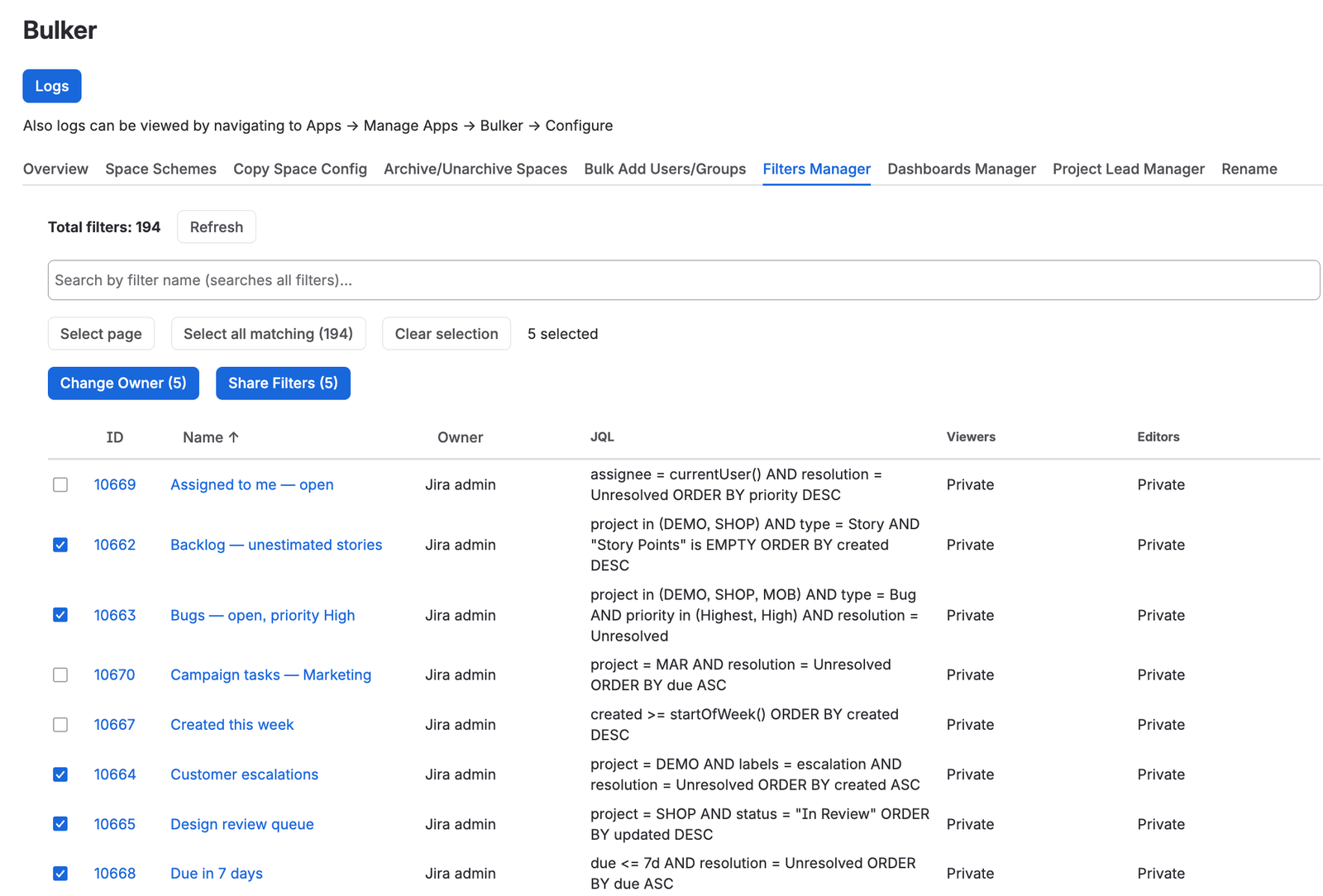
Tick the filters, then change owner or sharing in one go
Open Settings → Apps → Bulker and switch to the Filters Manager tab. Bulker is a Jira admin page, so you need Jira administrator rights to open it. The tab shows:
- Total filters: N at the top, with a Refresh button next to it.
- A search box, Search by filter name (searches all filters)…. The search runs on the Jira side across the whole site, not only the rows on screen, and a new search starts on page 1 with an empty selection.
- A table with the columns ID, Name, Owner, JQL, Viewers and Editors. ID, Name and Owner sort the entire set when you click them, not just the current page. The ID and the name link to the filter in Jira and open in a new tab.
- Pagination below the table, with 10 per page, 25 per page or 50 per page.
The Viewers and Editors columns read Private when a filter has no share or edit permission, and otherwise list each grant: Global, Logged in users on this instance, Group: …, User: …, or Project: … - Everyone / Project: … - Role. Only the rows on screen load their JQL and permissions, which is why the tab stays quick on a site with a lot of filters — the listing in our screenshots had 185 of them, and the mechanics are described in the July 2026 release notes.
The Dashboards Manager tab next to it is the same workflow for dashboards — same selection, same Change Owner and Share buttons.
See the guide: How to change a Jira dashboard owner in bulk and fix sharing.
Selecting filters
Three buttons sit above the table, and the line next to them always reads N selected:
- Tick the checkboxes one by one; the selection is kept while you move between pages.
- Select page ticks every row on the current page. Pressing it again on a fully ticked page unticks them.
- Select all matching (N) selects every filter that matches the current search — including the ones on pages you haven't opened. Bulker collects the IDs on the server and shows Collecting matching filters… X / Y while it does.
- Clear selection empties the set.
To find everything a former colleague owned, type a part of the filter name you know. The search is by name, not by owner, so if their filters follow no naming pattern, sort by Owner and use Select page on the pages that show their name.
How to change a Jira filter owner in bulk
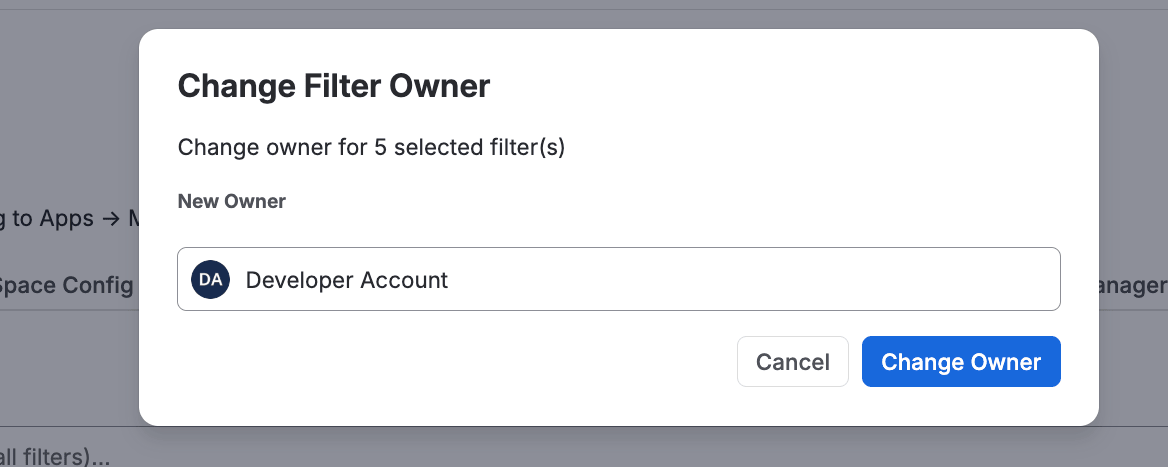
One new owner for every selected filter
Step 1 — Select the filters
Tick the filters, or use Select page / Select all matching (N). The Change Owner (N) button shows how many are selected and stays disabled until at least one is.
Step 2 — Pick the new owner
Press Change Owner (N). A dialog titled Change Filter Owner opens with the line "Change owner for N selected filter(s)" and a New Owner user picker. Only real user accounts are accepted — if you pick an app, Bulker says Please select a real user. Applications cannot be filter owners. and clears the choice.
Step 3 — Run it
Press Change Owner in the dialog. Bulker sends the change to Jira filter by filter, in batches, and shows Changing owner… X / Y while it works. Temporary rate limits and server errors from Jira are retried automatically.
When every filter went through, the green status line reads Changed owner for N filter(s), the selection is cleared and the table reloads with the new names in the Owner column. If some failed, the line reads Changed owner for N filter(s), M failed. followed by the first three reasons Jira gave; nothing else about the filters — name, JQL, sharing — is touched by an owner change.
How to share many Jira filters at once
Step 1 — Select the filters and open the dialog
Tick the filters and press Share Filters (N). The Share Filters dialog opens with two sections, Viewers and Editors.
For a selection of up to 50 filters, Bulker loads the permissions the selected filters already have and lists them, with Loading existing permissions… while it fetches. A grant that not all selected filters carry is marked, for example Group: jira-users (on 3 of 12). For selections above 50 the lists start empty, and the dialog says so: Existing permissions are not shown for selections over 50 filters. Added permissions will be applied to all selected filters.
Step 2 — Add viewers
In Viewers, choose a type and press Add:
| Type | Who gets view access |
|---|---|
| Global | Everyone, including anonymous access |
| Logged in users | Everyone signed in to this Jira site |
| Group | A Jira group picked from the list |
| User | A single user from the user picker |
| Project | Everyone in a project — or, if you also pick a role, only that role (All roles is the default) |
A permission that is already in the list is not added twice; Bulker answers This permission is already in the list.
Step 3 — Add editors
Editors works the same way with three types: Group, User and Project (again with an optional role). Global and logged-in-users edit access are not offered.
Step 4 — Remove what should go
Press × next to any existing entry to remove it. On save, Bulker removes that grant from every selected filter where it is present and skips the filters where it isn't.
Step 5 — Share
Press Share. Bulker applies the changes one after another — removals first, then additions — and shows Applying permission change 1 / 3… X / Y filters as it goes. Each change is applied to every selected filter.
When nothing failed, the status line reads Successfully shared N filter(s), followed by notes where they apply: X change(s) skipped, the permission was already there and Y removal(s) skipped, the permission was not there. Those are counted as successes — the filter already was in the state you asked for — but you are told about them rather than having them folded into the number. If Jira refused a change, Bulker shows Jira's own reason from the response instead of a generic error.
NOTE: Jira Cloud accepts a change to a filter's sharing only from the filter's owner — an administrator alone is not enough. For each filter, Bulker therefore makes the acting admin the owner for the moment of the change and hands the filter back to the original owner right after, whether the change succeeded or not. The original owner is written down before the swap, so even if a run is interrupted, the next operation on that filter restores the owner. The owner you see in the table is never changed by a sharing operation.
What the log records
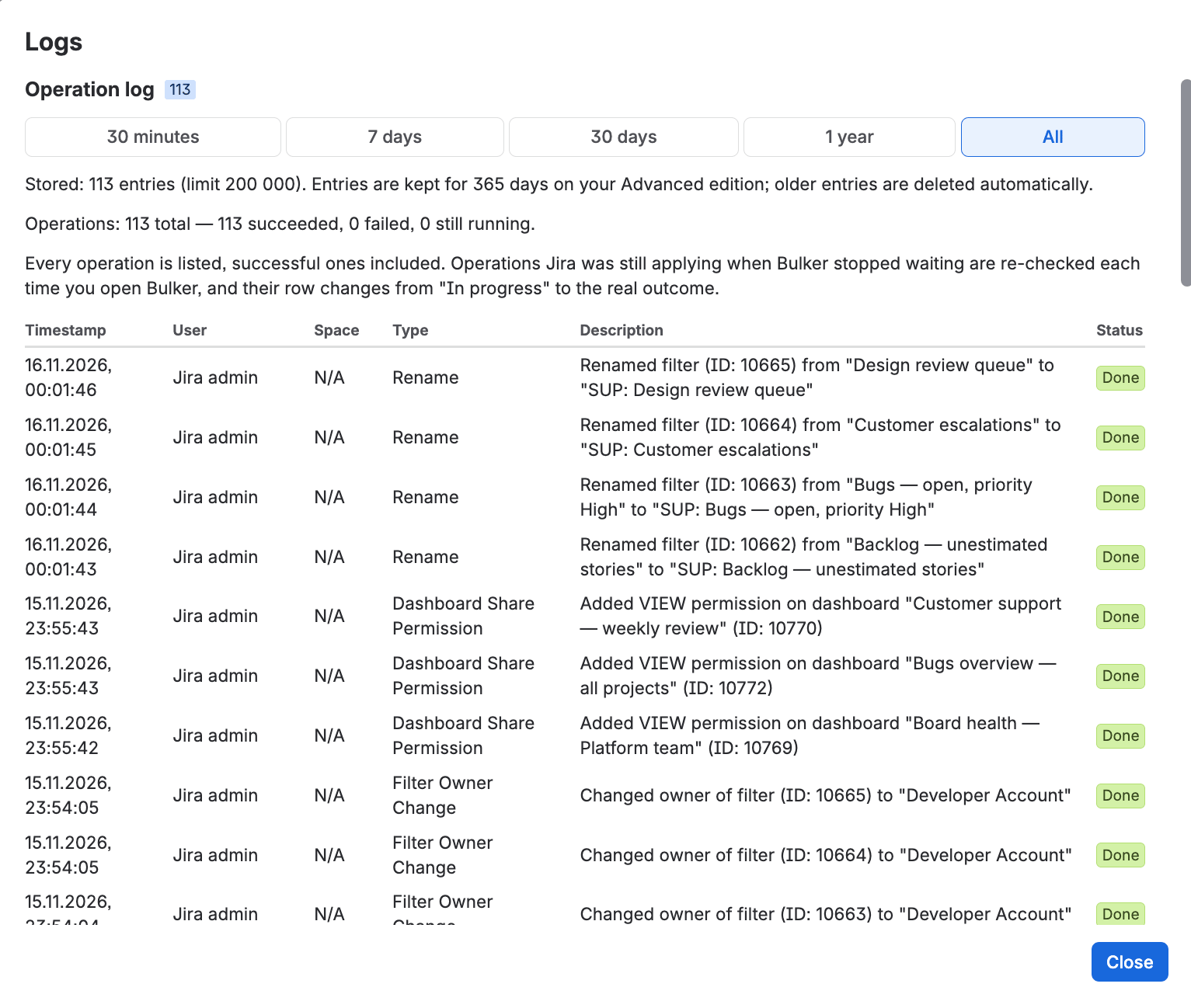
Every run, successful ones included, with Jira's answer
The Logs button at the top of Bulker opens the operation log; the same log is also at Apps → Manage Apps → Bulker → Configure. It is a table with Timestamp, User, Space, Type, Description and Status, with time-range buttons 30 minutes, 7 days, 30 days and All.
For this tab, Type is Filter Owner Change or Filter Share Permission, and Description names the filter by ID and what happened, for example:
Changed owner of filter (ID: 10432) to "Maria Keller"Added VIEW permission (Group: jira-software-users) on filter (ID: 10432)Deleted EDIT permission (User: Jan Novak) on filter (ID: 10432)Already present: VIEW permission (Project: Payments - Everyone) on filter (ID: 10432)Failed to change owner for filter (ID: 10432): …followed by Jira's response
Status shows Done or Failed. The User column is the admin who ran the operation, so a later audit can tell who reassigned the filters and when.
Limits and trial
Changing owners and sharing filters are part of every Bulker edition — the Advanced edition is only needed for the automation actions, not for this tab.
During a trial, one operation may include at most 10 filters. If more are selected, Bulker stops before sending anything and shows Trial limitation: You can only process 10 filters per operation. Please reduce your selection or purchase a license for unlimited access. The trial also caps the number of operations per day and in total. A paid license has none of these limits.
FAQ
How do I change the owner of a Jira filter whose owner was deactivated?
Open Settings → Apps → Bulker → Filters Manager, tick the filter (or several), press Change Owner (N), pick the new owner in the New Owner field and confirm with Change Owner. Bulker sends the change to Jira as the app, so it works for filters whose owner can no longer log in.
Can I change the owner of many filters at once in Jira Cloud?
Not in Jira itself — the owner is changed one filter at a time. In Bulker you select any number of filters, including Select all matching (N) across all pages of a search, and change their owner in one run.
Does changing the owner change the filter's sharing or JQL?
No. The owner change sends only the new owner's account to Jira. The name, JQL, Viewers and Editors stay as they were.
How do I share filters with a group in bulk?
Select the filters, press Share Filters (N), choose Group under Viewers (or Editors), pick the group, press Add, then Share. Filters that already have the grant are reported as skipped, the permission was already there.
Which share types does Bulker support?
For viewers: Global, Logged in users, Group, User and Project, optionally limited to a project role. For editors: Group, User and Project with an optional role.
Why does Bulker need to take ownership of a filter to share it?
Jira Cloud only accepts a sharing change from the filter's owner, even when an administrator asks. Bulker makes the acting admin the owner for the moment of the change and restores the original owner immediately afterwards, also when the change fails. The Owner column is never changed by a sharing operation.
Try Bulker
Bulker takes the repetitive side of Jira administration off your hands — filter and dashboard ownership, sharing, schemes, project roles and leads, archiving and renaming. The Filters Manager is available in every edition, and a trial lets you reassign up to 10 filters per operation to see how it fits your site. For the wider picture, see Bulk Jira admin: how to save 3 hours a week. For the performance work behind the tab, see the Bulker release notes — July 2026.
More guides in this series: