How to change the project lead in multiple Jira projects at once
Change the project lead in many Jira projects at once: Bulker's Project Lead Manager swaps a leaving lead in one run and logs every single result.
Someone leaves the company on Friday. On Monday, 40 Jira projects still name them as project lead — and Jira's own settings let you change the project lead in exactly one project at a time: open the project, go to Details, pick a new lead, save, next project. The Project Lead Manager tab in Bulker does the same change for every selected project in one run and writes each outcome to a log.
This guide walks through the tab step by step, shows the matching Jira Automation action for sites on the Advanced edition, and lists what the log records and where Bulker stops.
What the Project Lead Manager changes
The tab lists every project on the site that is not archived, with its key, name, current project lead and type (Software, Service or Business). You tick projects, pick one new lead, and Bulker sends Jira a project update that contains only the new lead's account ID. Nothing else in the request — so the default assignee, the project category, the description and every scheme stay exactly as they are.
Bulker does not check in advance whether the chosen user has permissions in each project. The small note in the dialog says what Jira expects — the new lead must have the "Administer Projects" permission for the selected projects — and Jira's answer decides project by project. If Jira refuses one project, the others still go through, and the refused one shows Jira's own reason.
How to bulk change the project lead in Jira, step by step
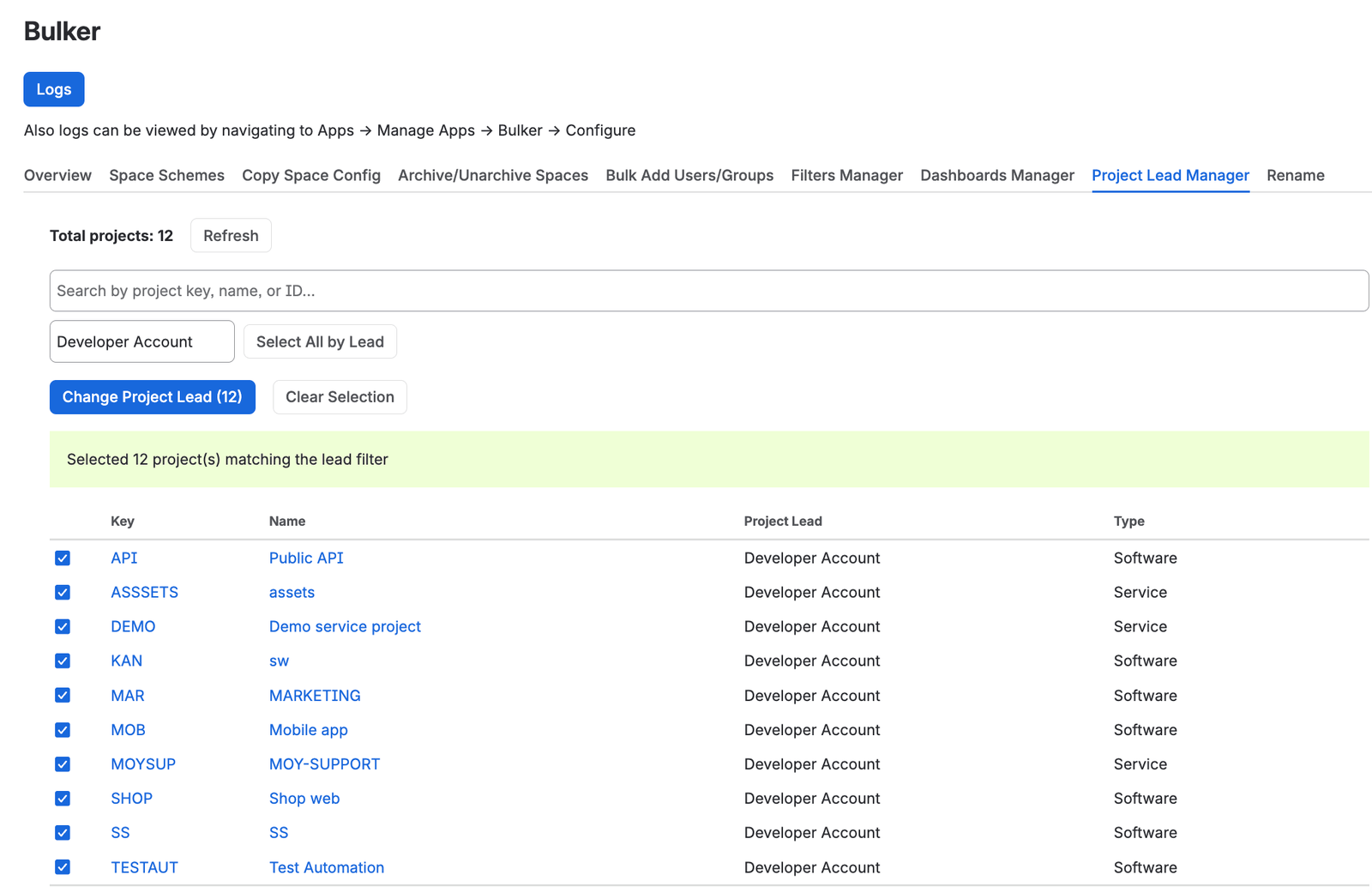
Filter by the current lead, select all, change once
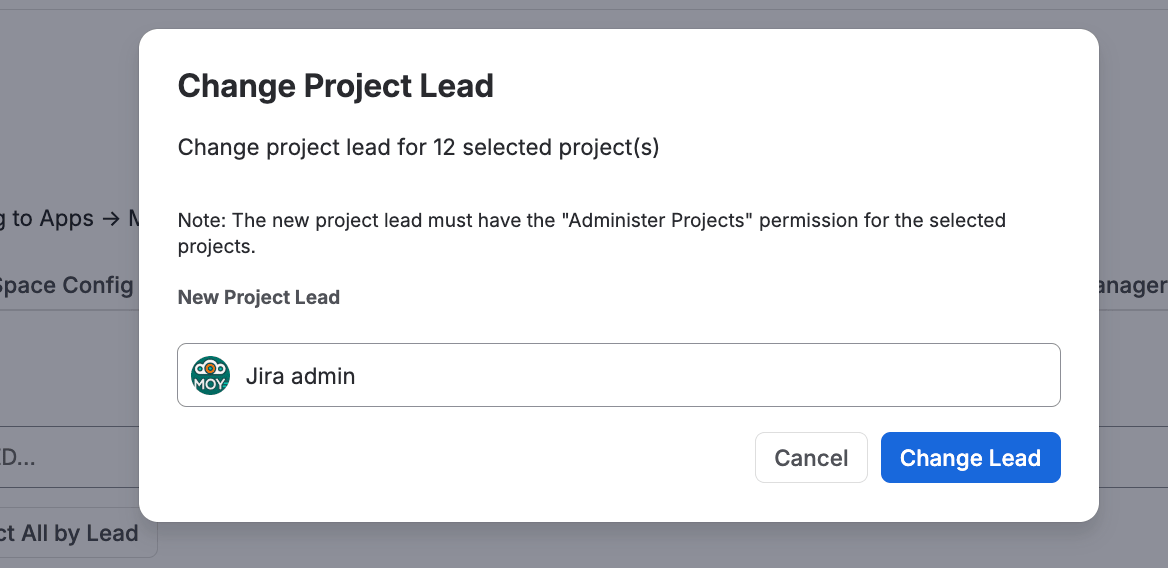
The new lead needs Administer Projects in every project
Step 1 — Open the tab
Go to Settings → Apps → Bulker and open the Project Lead Manager tab. Bulker loads all projects together with their leads; archived projects are left out. The line above the table reads Total projects: N, and Refresh reloads the list after something changed elsewhere in Jira.
Step 2 — Find every project the leaving lead owns
Type the person's name in Filter by current project lead name.... The table narrows to projects whose lead matches — by display name or by account ID. Then press Select All by Lead: every project that matches the filter is ticked, and Bulker confirms with "Selected 12 project(s) matching the lead filter".
For a hand-picked set, use the Search by project key, name, or ID... field and tick rows one by one. The primary button always shows the count — Change Project Lead (12) — and Clear Selection starts over.
Step 3 — Pick the new lead
Press Change Project Lead (N). The dialog repeats the count ("Change project lead for 12 selected project(s)") and offers a user search field labelled New Project Lead. Pick a person; the Change Lead button stays disabled until one is selected.
Only real user accounts are accepted. If you pick an app, Bulker clears the choice and says: "Please select a real user. Applications cannot be project leads."
Step 4 — Run it and read the result
Press Change Lead. Bulker updates the projects one after another and reports in a banner above the table:
- all good: "Successfully changed project lead for 12 project(s) to "Dana Weber""
- partly refused: "Changed lead for 10 project(s). 2 failed: SHOP: <Jira's reason>; PAY: <Jira's reason>"
After a run with at least one success the selection is cleared and the list reloads, so the Project Lead column shows the new names right away.
Change the project lead from a Jira Automation rule
Bulker also registers an action called Change Project Lead in Jira Automation. It needs Bulker's Advanced edition; on any other edition the action stops with: "Automation features are available only in the Advanced edition. Please upgrade to Advanced edition to use automation actions."
The action has two fields:
| Field | What goes in |
|---|---|
| Projects | Project keys or IDs, comma-separated, or a smart value such as {{issue.project.key}} |
| New Project Lead | The new lead's account ID, or a smart value such as {{issue.assignee.accountId}} |
Project keys are resolved to projects before the update, so SHOP, PAY, CRM works as well as numeric IDs. For the lead field, a smart value that resolves to a user object is accepted too — Bulker reads the account ID out of it.
Example rule — handover ticket closes, projects follow. Say your offboarding project has an issue type "Leadership handover" and the ticket is assigned to the successor.
- Trigger: Issue transitioned → to Done
- Condition: Issue type equals Leadership handover
- Action: Bulker → Change Project Lead, with Projects =
SHOP, PAY, CRMand New Project Lead ={{issue.assignee.accountId}}
The rule's audit log then shows either "Successfully changed lead for 3 project(s) to "Dana Weber"" or one line per refused project — "Failed to change lead for 'PAY (Payments)': <Jira's reason>". If some projects succeeded and some didn't, the action reports the successful count and attaches the failures as errors.
NOTE: Changes made by the automation action appear on Bulker's Logs page too, with a Type that starts with "Automation:" and the rule actor as the user.
What the log shows
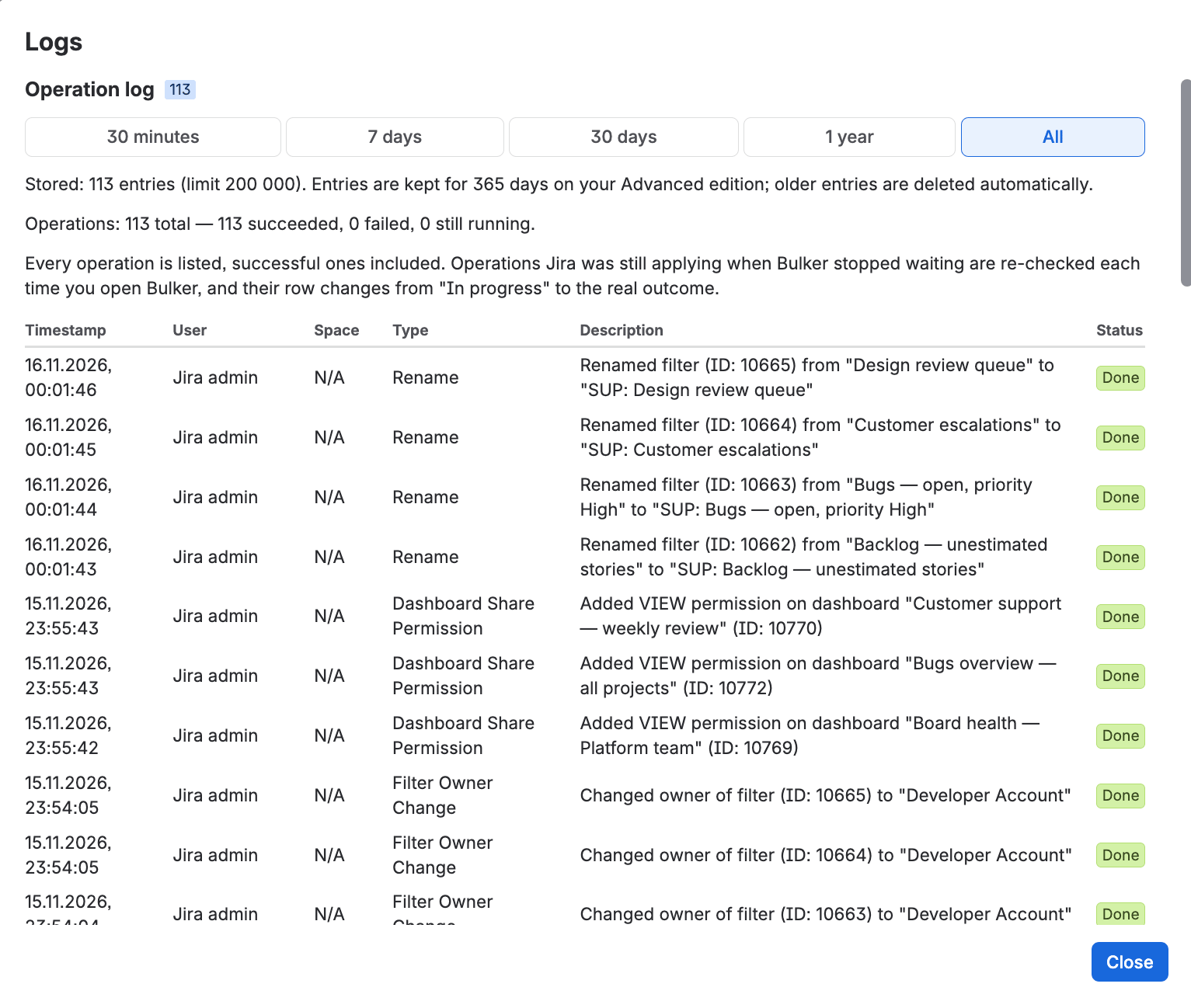
Every run, successful ones included, with Jira's answer
The Logs button at the top of Bulker opens the operation log (it is also reachable via Apps → Manage Apps → Bulker → Configure). Each project in a run gets its own row:
- Type: Project Lead Change
- Description: "Changed lead of project "Web Shop" (SHOP) to "Dana Weber"" — or, for a refusal, "Failed to change lead for project "Payments" (PAY): <Jira's reason>"
- Status: Done or Failed
- User: the admin who ran it
A Time range switch narrows the view to the last 30 minutes, 7 days, 30 days or everything, and a summary line counts "Operations: total — succeeded, failed, still running". Log entries are kept for 45 days on the Standard edition, 365 days on the Advanced edition and 7 days during the trial.
NOTE: The Space column is empty (N/A) for project lead entries — the project key and name are in the description instead.
Limits and trial
- Trial: up to 5 projects per operation in the Project Lead Manager. Selecting more stops the run with: "Trial limitation: You can only process 5 projects per operation. Please reduce your selection or purchase a license for unlimited access." The trial also caps all Bulker tabs together at 20 operations per day and 100 in total, and automation actions at 5 runs per day.
- Paid licence: no per-operation cap on the number of projects.
- Automation action: Advanced edition only. During a trial Bulker treats the licence as Advanced, so the action can be tested within the trial caps.
FAQ
How do I find every Jira project a leaving user is project lead of?
Open Project Lead Manager in Bulker and type the person's name in Filter by current project lead name.... The table narrows to their projects; Select All by Lead ticks all of them in one click.
Does changing the project lead also change the default assignee?
No. Bulker sends Jira only the new lead's account ID. The default assignee setting, the project category, description and all schemes are not part of the request and stay as they were.
Can I make an app or bot account the project lead?
No. The user field accepts real user accounts only; picking an app clears the choice with the message "Please select a real user. Applications cannot be project leads."
What happens if the new lead has no permission in one of the projects?
Bulker does not pre-check permissions — Jira decides per project. The projects Jira accepts are changed; the refused one appears in the result banner and in Logs as Failed, with Jira's own reason next to the project key.
How do I change the project lead automatically when someone leaves?
On the Advanced edition, add Bulker's Change Project Lead action to a Jira Automation rule — for example on an offboarding ticket — with the project keys in Projects and {{issue.assignee.accountId}} in New Project Lead.
Why is a project missing from the Project Lead Manager list?
Archived projects are left out on purpose. If a project was just created or un-archived, press Refresh to reload the list.
Try Bulker
A lead change across a whole portfolio takes one filter, one click and one dialog in Bulker. The same app handles schemes, roles, filters, dashboards, archiving and renaming in bulk — see Bulk Jira admin: how to save 3 hours a week for the overview, and the Bulker release notes — September 2026 for what changed last.
More guides in this series:
- How to bulk change Jira schemes across multiple projects
- How to add a user to multiple Jira projects at once
- How to change a Jira filter owner in bulk (and share filters)
- How to change a Jira dashboard owner in bulk and fix sharing
- How to bulk archive Jira projects (and unarchive them)
- How to bulk rename Jira schemes, screens and filters