How to bulk rename Jira schemes, screens and filters
Bulk rename Jira schemes, screens and filters: add a project prefix, clean up migration names and catch naming-policy violations with Bulker's Rename tab.
Nobody sets out to name a notification scheme "Copy of Copy of Default Notification Scheme". It happens one admin at a time: a migration imports schemes with the old vendor's prefix, a contractor clones a screen scheme and never renames the clone, a project is deleted and its filters stay behind with the dead key in their names. Five years later the admin screens are a guessing game, and nobody wants to bulk rename Jira schemes by hand, one page at a time.
This guide is organised around the four jobs admins actually search for: giving every scheme a project prefix, fixing inconsistent names after a migration, finding the objects that break your naming convention, and renaming the filters of a deleted project. All four run through the Rename tab of Bulker, a Forge app for Jira Cloud. If you want the release-by-release view instead, the September release notes cover what's new.
What the Rename tab does
The tab is one screen: on the left you set up the run, on the right you pick the objects. The instruction at the top says it all — pick an object type, choose the objects, describe the change, check the preview, then apply it. Every rename sends only the name and the object's own description; nothing else about the object is touched, so permission grants, screen tabs and notification events stay exactly as they were.
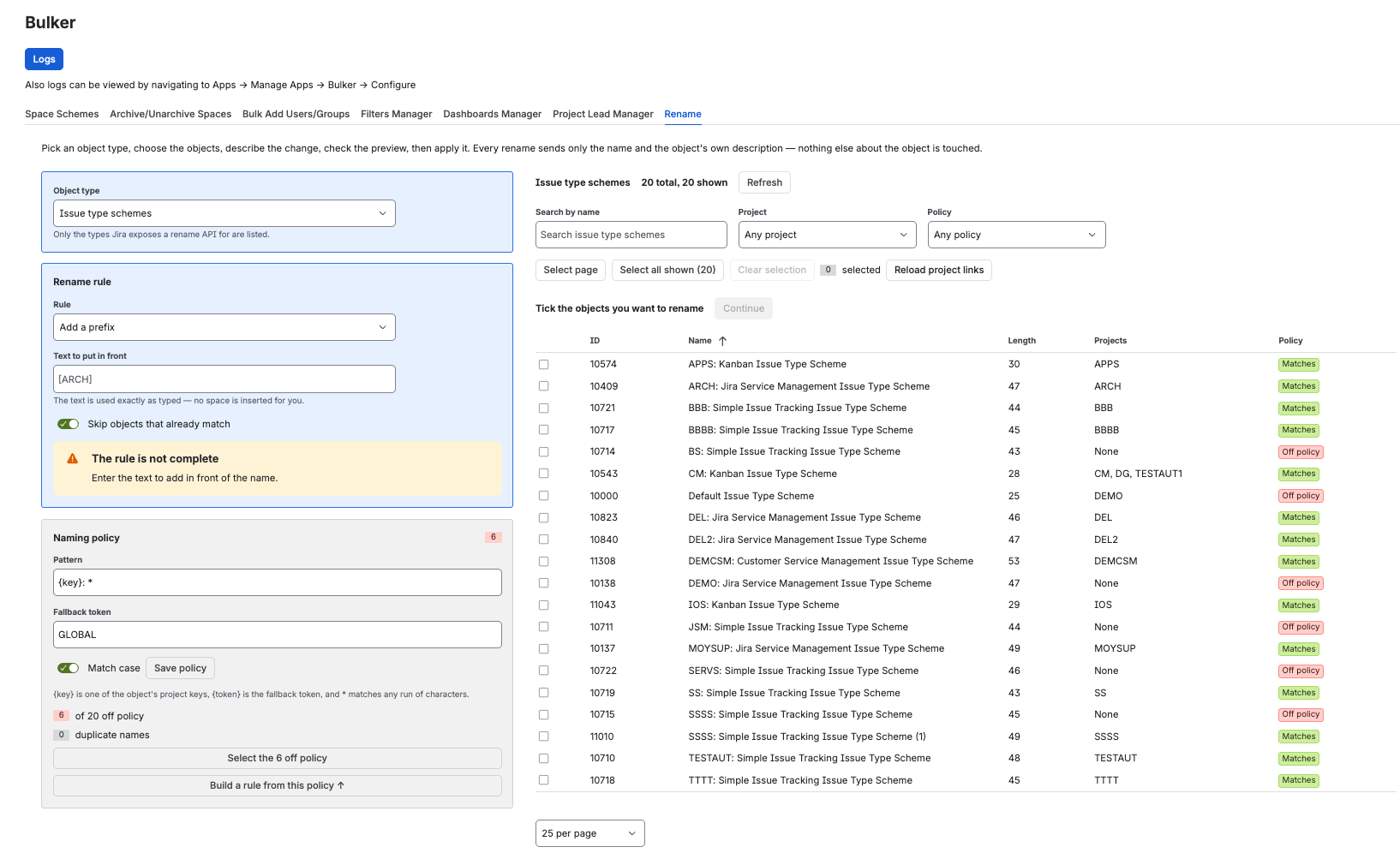
One screen: settings on the left, the objects and their policy status on the right
Object type lists only the types Jira exposes a rename API for:
- Issue type schemes
- Issue type screen schemes
- Notification schemes
- Issue security schemes
- Screens
- Screen schemes
- Permission schemes
- Filters
Workflows, boards, field configurations and dashboards are not offered — Jira's workflow update API carries no name field, there is no API that renames boards, the field configuration routes were removed from Jira's REST API, and renaming a dashboard through the API would replace the whole dashboard and drop its share permissions.
Once a type is loaded, the table on the right shows each object's ID, Name, Length and Projects, plus a Policy column as soon as a naming policy is set. Above it sit three filters — Search by name, Project and Policy — and the selection buttons Select page, Select all shown, Clear selection. The bold line next to Continue always tells you how many objects are ticked, and that is the number that will be renamed.
The Rename rule card offers four rules:
| Rule | Fields | What happens |
|---|---|---|
| Add a prefix | Text to put in front | The text goes in front of the name, exactly as typed — no space is inserted for you |
| Add a suffix | Text to add at the end | The text goes after the name, exactly as typed |
| Find and replace | Find, Replace with, Match case | Every occurrence is replaced, matched literally — never as a pattern |
| Add the project key | Prefix template, Fallback token | {key} becomes the project key when the object belongs to exactly one project, and the fallback token otherwise |
Prefix, suffix and project key share the Skip objects that already match toggle: a name that already starts (or, for a suffix, ends) with the text is left alone, so running the same rule twice never doubles it.
Recipe 1: bulk rename Jira schemes with a project prefix
The goal: Kanban Issue Type Scheme becomes CP: Kanban Issue Type Scheme, and schemes shared by several projects get a visible marker instead.
- Choose the Object type — say, Issue type schemes. Bulker loads the list and then the project links. For issue type schemes and issue type screen schemes the links arrive with the list; for notification schemes, permission schemes, screens and screen schemes they take one Jira request per project and load in the background, with a progress bar. The Projects column shows Loading… until they are in.
- In Rename rule pick Add the project key. The Prefix template defaults to
{key}:; change it to[{key}]or{key}_if that is your house style. - Enter a Fallback token such as
GLOBAL. An object used by exactly one project gets that project's key; an object on no project or on several gets the token. Leave the token empty and those objects are left out of the batch instead — the preview marks them No key with the reason "On 3 projects — set a fallback token to include it". - Tick the objects — Select all shown takes everything the current filters leave on screen — and press Continue.
- The dialog "Rename 20 issue type schemes?" lists every ticked object with its Current name and what it Becomes. Rows that used the token carry a Token lozenge, so you can see at a glance which schemes are shared. Press Rename 20 issue type schemes.
If the project links came back incomplete, the project-key rule stays off and the card says "Load project links first". Bulker never guesses that an object is on no projects just because Jira has not answered yet — press Reload project links and continue once every row is resolved. An object whose single project Bulker cannot read (an archived project is the usual reason) is excluded with the lozenge Key unknown rather than renamed with the token.
NOTE: The project-key rule only adds a prefix. An object that already carries the wrong key —
WW: Supporton a project called QQ — is a find-and-replace job, or a job for the naming policy below, which knows how to swap one policy head for another.
Recipe 2: fix inconsistent names after a migration
After an import or a round of cloning, the same junk tends to sit in dozens of names: Copy of , an old vendor prefix, a (1) at the end. Find and replace removes it in one pass.
- Choose the object type and type the junk into Search by name — for example
Copy of. The table narrows to the objects that carry it. - In Rename rule pick Find and replace. Put
Copy of(with the trailing space) into Find and leave Replace with empty. - Match case is on by default. Switch it off to catch
copy ofandCOPY OFas well; the replacement is then inserted exactly as typed. - Select all shown, then Continue.
The preview is where this recipe earns its keep. Removing a prefix often produces a name that already exists — Copy of Default Screen Scheme wants to become Default Screen Scheme, which is still there. Such a row is marked Name taken ("Another screen scheme already uses this name"), and when two ticked objects would end up with the same name both are marked Duplicate. Renaming stays off until every blocked row is unticked or the rule is changed; the dialog counts them for you as "will be renamed · unchanged or excluded · blocked".
Two more lozenges you may meet here: Too long when the new name exceeds Jira's limit — 255 characters for most types, but only 60 for issue security schemes — and Space when a new name would start or end with a space, which is allowed but rarely intended.
Recipe 3: find Jira objects that break your naming convention
A rename fixes names once. A naming policy keeps them fixed: a pattern saved for the object type, against which every name is checked each time the tab opens. This is the feature at the centre of the tab, and it answers the question most admins actually have — "is our Jira configuration in order?" — before anyone renames anything.
Define the policy
In the grey Naming policy card:
- Enter a Pattern. Three tokens are understood:
{key}is one of the object's project keys,{token}is the fallback token, and*matches any run of characters. Everything else is literal text — including any other{…}. So{key}: *means "starts with a project key and a colon",[{key}] *means "starts with a bracketed key", and* (Managed)means "ends with (Managed)". - Enter the Fallback token, for example
GLOBAL.{key}also accepts the token, so a shared scheme namedGLOBAL: Default Permission Schemecounts as matching, and an object on no project can only match through the token. - Decide whether Match case matters, then press Save policy. The policy is stored per object type and applies to everyone on this site — the next admin who opens the tab sees the same standard. If a colleague saved a newer version in the meantime, Bulker refuses to overwrite it, tells you who changed it and when, and offers Load the saved policy.
Read the results
As soon as the pattern is valid, the card shows two counters — "6 of 20 off policy" and "0 duplicate names" — and the table gains a Policy column with a green Matches or a red Off policy lozenge per row. The Policy filter above the table narrows the list to Off policy, Matches policy or Duplicate names (objects of this type that share a name, which is counted even when no pattern is set).
That "6 of 20" is the number to watch over time: run the tab after the clean-up and it should read "0 of 20".
Fix what's off
Two buttons turn the policy into a rename, each doing exactly one thing:
- Select the 6 off policy ticks precisely the objects that don't match — nothing else changes.
- Build a rule from this policy ↑ fills the Rename rule card so that renaming brings names in line.
{key}: *becomes the rule Add the project key with the template{key}:;[{key}] *becomes the same rule with[{key}];* (Managed)becomes Add a suffix. A pattern with more than one variable part cannot be turned into a single rule, and Bulker says so instead of guessing.
The derived project-key rule does one thing the plain rule does not: it replaces an existing policy head instead of stacking a second one. WW: Support on a project with the key QQ becomes QQ: Support, not QQ: WW: Support. Only a head that is a real project key on this site, or the fallback token, is ever removed — an ordinary prefix such as HR: or TODO: is left alone, because deleting a word from every name in a batch is not something you want to discover afterwards.
Then press Continue, check the preview and rename. One limit to know: the policy counter is not available for Filters. A site can hold tens of thousands of them and only one page is loaded at a time, so a "how many match" number would be a guess. Renaming filters still works, page by page — see the next recipe.
Recipe 4: rename the filters of a deleted project
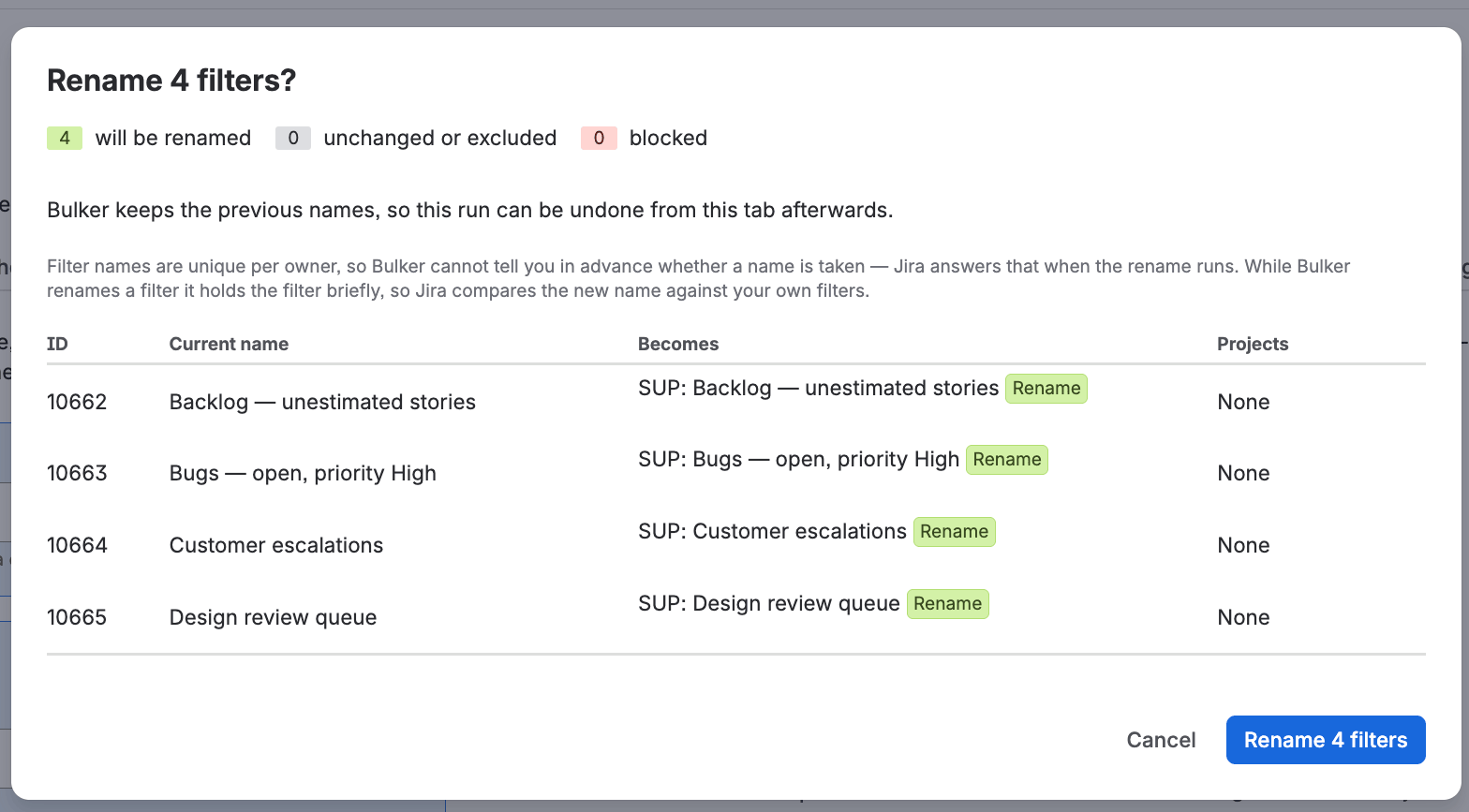
Current name, new name, nothing applied until you confirm
When a project is deleted, its saved filters survive with the old key baked into their names: OLDKEY – open bugs, OLDKEY sprint review. They clutter every filter picker and nobody dares delete them. Marking them is a two-minute job.
- Choose the Object type Filters. Filters are searched on the server, so type the old project key into Search by name — Bulker returns the matching filters one page at a time, with Previous and Next below the table.
- Pick a rule. Add a suffix with
(archived)keeps the names recognisable; Find and replace withOLDKEY→ARCHIVED-OLDKEYkeeps them sortable. The Skip objects that already match toggle makes the suffix safe to re-run. - Select all shown, Continue, and confirm. Repeat for the next page if the search returned more than one.
Filters are the one type where Jira requires the caller to own the object. Bulker handles that for you: while it renames a filter it holds the filter briefly and hands it back to the original owner afterwards. The result row carries a warning if the owner could not be restored, and Bulker restores it the next time it touches that filter. Two consequences are worth knowing: filter names are unique per owner, so Bulker cannot tell you in advance whether a name is taken — Jira answers that when the rename runs — and the check is made against your own filters while Bulker holds the filter.
Filters also have no project association, so the project-key rule always falls back to the token for them, and the Project filter is not shown.
How to undo a bulk rename in Jira
Before anything is written, the dialog says so: "Bulker keeps the previous names, so this run can be undone from this tab afterwards." After a run, a panel above the filters reads "This rename can be undone", with the object count and the time the run started, and the button Undo the last rename (20 objects).
The undo restores the previous names and reports "Restored 18 · Skipped 2 · Failed 0", with a row per object. Objects renamed again since the run are skipped ("this object was renamed again after the operation"), as are objects that no longer exist. An object whose old name has meanwhile been taken by something else cannot be restored and is reported as failed. Bulker keeps the last three rename operations per object type for 30 days; an undo cannot itself be undone, and an operation can only be undone once.
Every rename and every undo is also written to Bulker's operation log — "Renamed issue type scheme (ID: 10574) from … to …" — so the audit trail survives the tab being closed.
What Jira refuses, and how Bulker tells you
Bulker checks what it can before a single request goes out, and shows Jira's own reason for the rest.
- Name length. 255 characters for every type except issue security schemes, where the limit is 60. The preview blocks such rows as Too long with the count, "67 of 60 characters".
- Duplicates. Names must be unique per type, and for notification schemes and issue security schemes the comparison ignores case. The preview checks the new names against every loaded object of the type and against each other; a row that collides with an object this very run is renaming away is marked Conflict with the advice to do it in two runs.
- Empty names. A find-and-replace that would leave nothing is blocked as Empty.
- Permissions. If Jira answers 403, the result row says "The app is not allowed to rename this object (Administer Jira permission required)."
- Objects that vanished. An object deleted since the list was loaded is reported as "This issue type scheme no longer exists in Jira. Reload the list."
- Descriptions. If Bulker cannot read an object's current description, it does not rename it — a name-only update would have erased the description, and the row says so.
- Everything else. When Jira rejects a rename for a reason of its own, the result shows Jira's message rather than a generic error.
Trial and limits
Bulk renaming is part of the standard Bulker licence — no separate edition is needed. During the trial, Bulker renames up to 10 objects per operation; the tab says "Trial limit reached" before anything is written, and a paid licence lifts the cap.
Very large sites may see the warning "Only part of the list is shown" for a type with more objects than the tab loads at once; narrow the list in Jira or rename in smaller groups.
FAQ
How do I rename all Jira schemes with a project prefix at once?
Open Settings → Apps → Bulker → Rename, choose the object type, pick the rule Add the project key with a template such as {key}: , enter a fallback token like GLOBAL for schemes used by several projects, tick the objects and press Continue. The preview shows every new name before you confirm.
How do I find Jira schemes that don't follow our naming convention?
Save a pattern such as {key}: * in the Naming policy card. Bulker then shows "N of M off policy", marks each row Matches or Off policy, and the Policy filter narrows the table to the offenders. Select the N off policy ticks them all.
Can I rename workflows or boards in bulk with Bulker?
No. Jira's workflow update API has no name field, there is no API that renames boards, the field configuration routes were removed from Jira's REST API, and renaming a dashboard through the API would replace the whole dashboard and drop its share permissions. Bulker only lists the types it can rename safely.
Does bulk renaming change what a scheme does?
No. Each rename sends only the name and the object's existing description. Permission grants, screens, notification events and project associations are not part of the request and stay as they were.
What happens if two objects would get the same name?
The preview blocks both rows as Duplicate, and a new name that an existing object already uses is blocked as Name taken. For notification and issue security schemes the comparison ignores case. Renaming stays off until the rows are unticked or the rule is changed.
How do I undo a bulk rename in Jira?
After a run, press Undo the last rename in the Rename tab. Bulker restores the previous names, skips objects renamed again since, and reports "Restored · Skipped · Failed". The last three operations per object type are kept for 30 days.
Put your naming convention into practice
A naming convention that lives in a Confluence page is a wish; one that lives in the Rename tab is a counter you can read. Bulker adds bulk renaming to the rest of its toolkit for Jira admins — scheme assignment, roles, project leads, archiving — and if you want more ways to shrink admin busywork, start with Bulk Jira admin: how to save 3 hours a week.
More guides in this series: