Change the workflow scheme on Jira projects that already have issues
Switching a workflow scheme on a project with issues means mapping every old status. Here is what Jira asks for and how Bulker derives or lets you review the mapping.
You want to change the workflow scheme of a Jira project that already has issues, and Jira sends you into the status migration wizard. Do that for ten projects and you will spend the afternoon clicking "Next". The wizard exists for a good reason: issues sit in statuses, and the new workflows may not have those statuses.
This guide explains what Jira needs, and the two ways Bulker handles it for many projects at once.
Why Jira asks for a status mapping
Jira assigns a workflow scheme directly only to an empty project. For a project with issues it requires a mapping for every issue type whose current statuses are not all in the new workflow, then runs the migration as a background task. Jira's own documentation covers the wizard in Atlassian's workflow scheme guide; the point to remember is that a wrong mapping moves real issues into the wrong status.
Option 1: Space Schemes, mapping derived for you
The Space Schemes tab assigns one scheme type to many spaces in a single run. Pick the spaces, choose Workflow Schemes, pick the new scheme and press Assign Scheme.
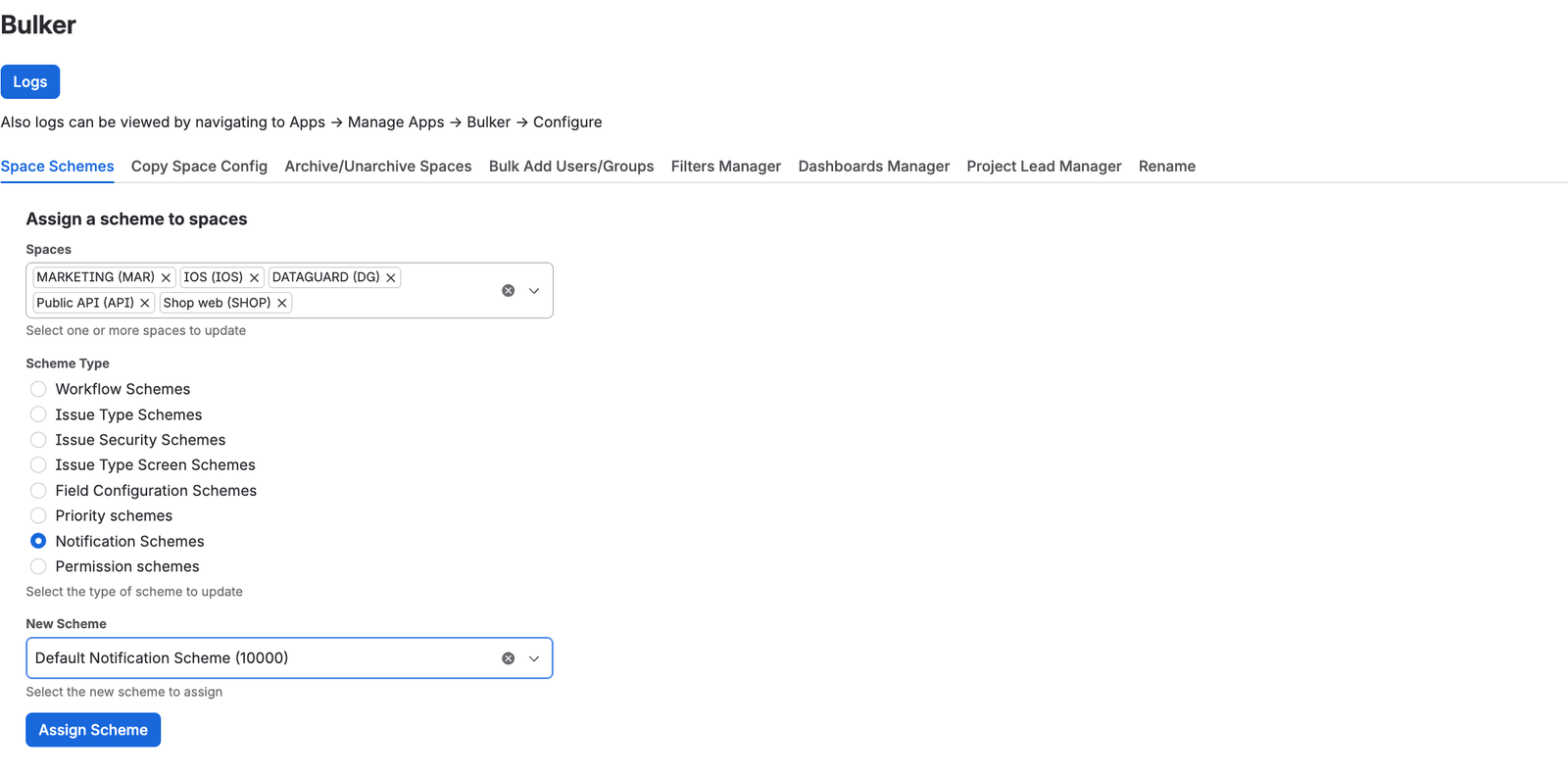
Several spaces, one scheme type, one new scheme
Bulker first tries the direct assignment. When Jira answers that only empty projects can be assigned that way, Bulker reads the project's issue types and statuses and the target workflows, and derives the mapping. For each old status the rule is:
- the same status, if the new workflow has it;
- otherwise a status with the same name;
- otherwise the first status of the same category (To Do, In Progress, Done);
- otherwise the workflow's initial status.
Then it submits the switch and waits for Jira's migration task. You get a per-project message: assigned, refused with Jira's reason, or "Assignment started" when Jira is still working.
NOTE: This tab applies the derived mapping without a review step and has no undo. Try one project first.
Option 2: Copy Space Config, mapping you review
If you want to see and edit every status move before it happens, use Copy Space Config and choose Link or Clone for the workflow scheme row. When a target has issues, the preview row says how many will change status (for example "0 of 8 issue(s) change status" when the new workflow already has every status in use) and offers Review.
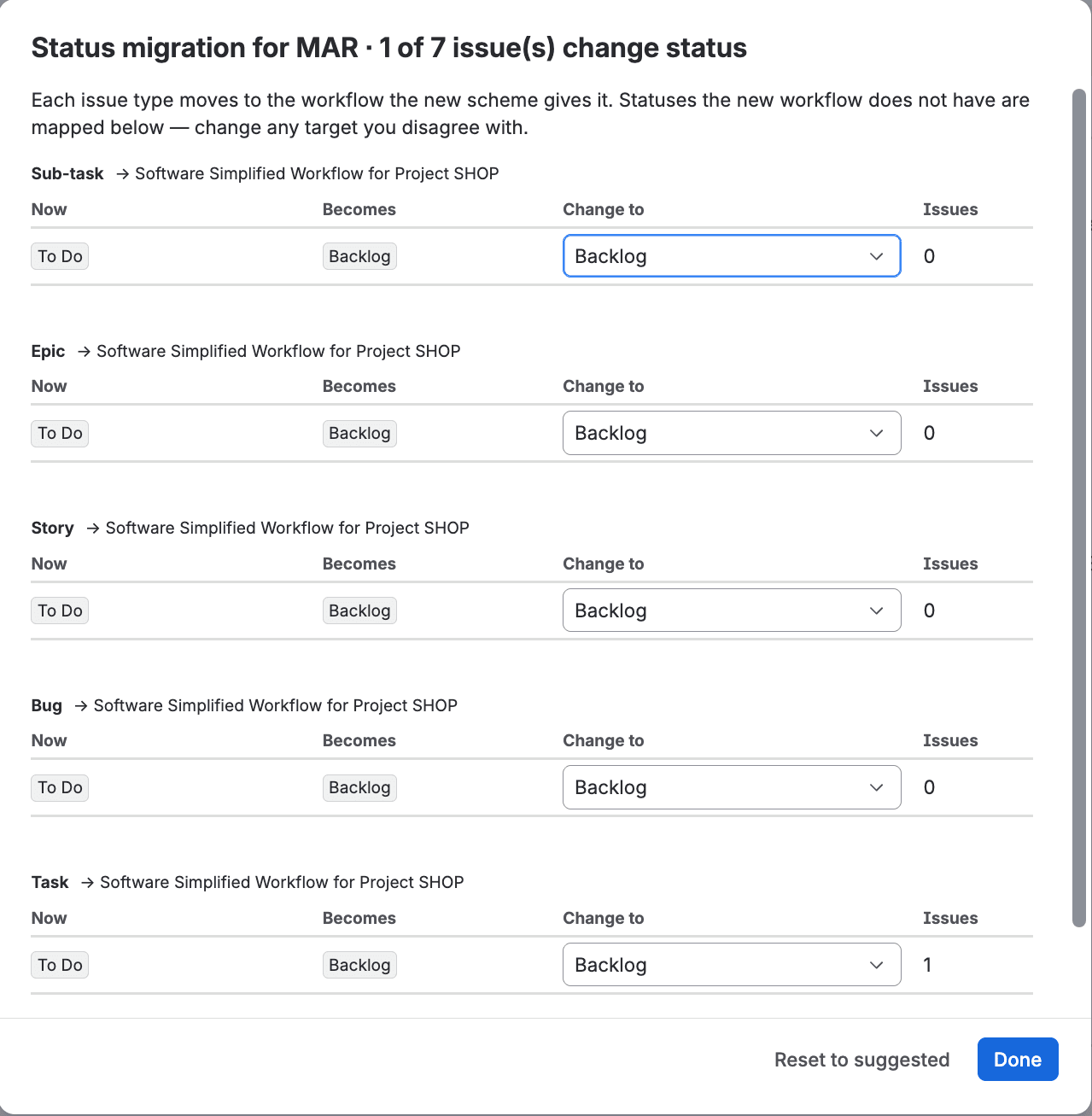
Status migration, reviewed per issue type before Apply
The dialog has one section per issue type. Each row shows the status Now, the status it Becomes, a Change to selector with the statuses of the new workflow and how many Issues sit in the old status. The suggestion uses the same four-step rule; change any target you like. Your choices travel with the plan.
Jira sometimes asks for a mapping for an issue type the project does not even use, because that type has its own workflow in the old or the new scheme. Bulker asks Jira which types it needs and lists them under "Not used in KEY, but Jira still asks", so the migration does not fail on a type you never see.
Undo, and what it cannot do
Copy Space Config keeps the last five copies undoable; a workflow scheme is switched back with the same migration review. Undo puts schemes back, but it does not restore issues that a migration moved to another status in between. Review the mapping before you apply.
Checklist before a bulk workflow switch
- Run one project first and look at the issues afterwards.
- Check which statuses have many issues; those rows matter most in the review.
- Make sure the new workflows contain the statuses you want to keep, or map them deliberately.
- Remember the target must be a company-managed project; team-managed projects do not use shared schemes.
- Check Bulker's operation log afterwards: it records each assignment and what Jira answered.
FAQ
Why does Jira ask for a status mapping when I change a workflow scheme?
Because the project's issues sit in statuses the new workflow may not have. Jira needs to know where each issue should go before it migrates them.
How do I change the workflow scheme of many Jira projects at once?
Use Bulker's Space Schemes tab: tick the spaces, choose Workflow Schemes, pick the new scheme and press Assign Scheme. For a reviewed mapping use Copy Space Config instead.
Can I review the status mapping before it runs?
In Copy Space Config, yes: the preview offers Review per target. The Space Schemes tab applies its derived mapping without a review step.
Can I undo a workflow scheme change?
Copy Space Config can switch the scheme back with the same review. The Space Schemes tab has no undo, and neither tool moves issues back to their earlier status.
Try it on a few projects first
Install Bulker from the Atlassian Marketplace and run your first workflow switch on one project.
More guides in this series: