How to change the permission scheme of multiple Jira projects
Jira assigns a permission scheme one project at a time. Bulker's Space Schemes tab assigns one to many projects in a single run and tells you what Jira refused.
Your company merges two teams, tightens access, or retires an old permission scheme, and now thirty Jira projects need a different permission scheme. In Jira's project settings, that is thirty visits to the Permissions page. Atlassian's own feature request for bulk-applying schemes to selected projects has been declined, so Jira Cloud will not grow this button soon.
The Space Schemes tab in Bulker does it in one run. This guide covers permission schemes in particular, because a wrong one changes who can see and edit everything.
Before you start
- Decide the scheme you want. Create or adjust it in Jira first; Bulker assigns existing schemes.
- Note which scheme each project uses today. The tab has no undo and does not store the previous scheme, so this note is your way back.
- Know that a shared scheme affects every project that uses it. Changing the scheme itself is different from assigning another scheme to a project.
Step by step
- Open Settings → Apps → Bulker. The page opens on Space Schemes ("Assign a scheme to spaces"; Bulker calls projects spaces).
- In Spaces, search and tick the projects. The number you tick is the number of assignments that will run.
- Under Scheme Type choose Permission schemes. Switching the type reloads the schemes list.
- In New Scheme pick the scheme. Each entry is shown as "Name (id)", for example
Default Permission Scheme (10000), because two schemes can have similar names. - Press Assign Scheme.
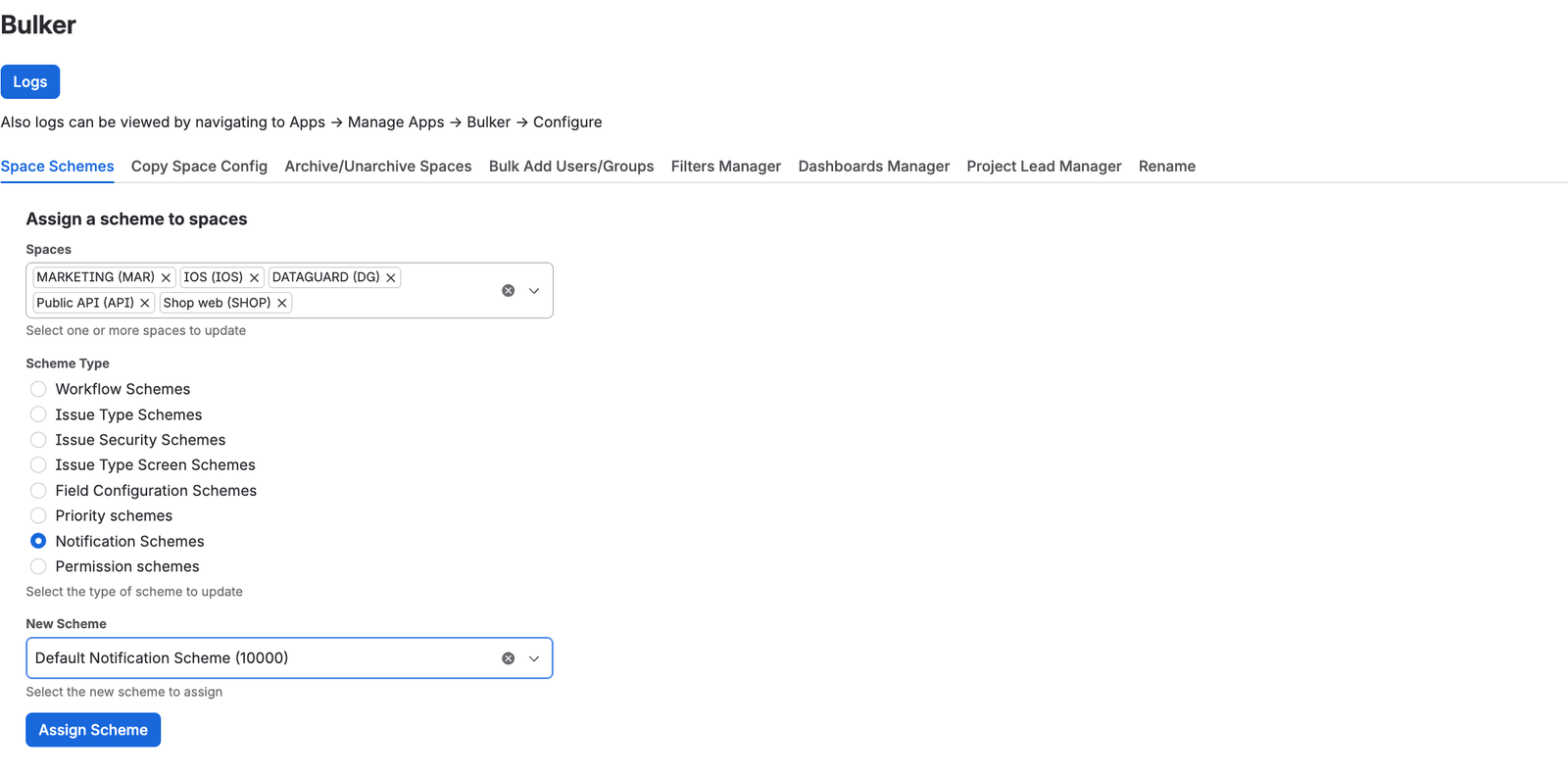
Five spaces, one scheme type, one new scheme, then Assign Scheme
There is no confirmation dialog and no preview in this tab: the button is the action. Run a single project first.
Reading the result
You get one message per project: a green "Scheme assigned.", a red message with Jira's own reason, or a blue message when Jira accepted the change but is still applying it. If the license check fails on a project, Bulker stops the run with a License error rather than continuing.
Typical refusals:
- Team-managed projects do not accept shared schemes. They appear in the list, and Jira refuses with its own message.
- Missing permission: "The app is not allowed to change this scheme (Administer Jira permission required)."
- Plan limits: Jira may refuse to change permission schemes on a Free plan; Bulker shows Jira's message.
Check what changed
Open Logs at the top of the page. Each assignment has a row with timestamp, the admin, the space, the type, the new scheme's name and a status (Done, Failed, In progress or Unconfirmed). Successful operations are counted in the summary line rather than listed one by one; failures and operations still running stay in detail.
When you want an undo: Copy Space Config
If you are bringing several projects onto the permission scheme of a reference project, use Copy Space Config with Link or Clone on the permission row. That tab shows a preview and keeps the last five copies undoable.
FAQ
How do I change the permission scheme for multiple Jira projects?
In Bulker's Space Schemes tab, tick the spaces, choose Permission schemes, pick the new scheme and press Assign Scheme.
Can I undo a bulk permission scheme change?
Not in the Space Schemes tab: it does not store the previous scheme. Note the current schemes first. Copy Space Config records what each copy replaced and can restore it.
Does it work for team-managed projects?
No. Team-managed projects do not accept shared schemes, and Jira refuses the assignment with its own message.
Do I need the Advanced edition?
No. Scheme assignment is available in every edition; Advanced is needed only for the automation actions.
Change the scheme once, not thirty times
Install Bulker from the Atlassian Marketplace and assign the scheme to all projects in one run.
More guides in this series: